Open Ticket
 +373 79 600002
 Telegram Live Chat
 F.A.Q
 English
 Русский
 Română
 Deutsch
 Français
 Türkçe
 Español
 Português
 Українська
 български
 Polski
 Indonesia
 中文 (中国)


 on All Hosting Services


Linux Executable Files: What They Are and How to Run Them
What is an executable file in Linux?
You download a Linux tool, type its filename into the terminal, and get “command not found.” The download isn’t necessarily broken: Linux may need a path to the file rather than its name alone. An executable file in Linux contains a program the system can run, such as an application or automation script.
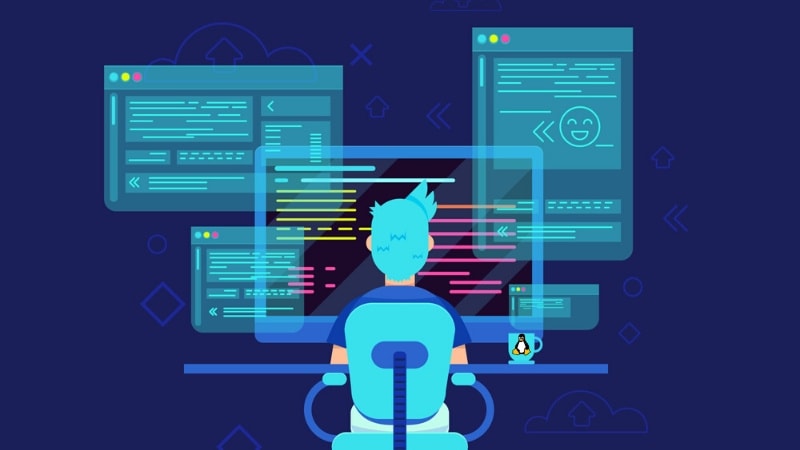
Think of a compiled, or native, program as a ready-made tool: its instructions are prepared for the target machine. A script is an instruction card that an interpreter—software that reads those instructions—works through. Linux has no mandatory executable extension. For a trusted, compatible native program, the usual approach is to give its path and ensure you have execute permission, which allows you to start it directly.
Permission alone doesn’t turn a document into a program or supply missing software. First, identify the file: its name alone cannot tell you whether to run, install, or extract it.
Identify the download before trying to run it
Use the table to choose between launching, interpreting, installing, and extracting. Opening a document isn’t the same as running instructions. Two names deserve particular care: .bin can contain non-program data, and .run can be a script-based installer.

| What you have | What it means | Usual next step |
|---|---|---|
| Native program; often extensionless, sometimes .bin/.run | Compiled application or installer | Check what it is, then follow the publisher’s launch instructions |
| Script; often .sh/.py | Text instructions for an interpreter | Use the required interpreter, or run directly as explained below |
| .AppImage | Portable application bundle | Add execute permission if missing, then run using its path |
| .deb/.rpm | Software package for a particular Linux distribution | Install with the matching system’s package tools |
| .tar.gz/.zip | Archive: programs, source, or data | Extract, identify contents, read publisher’s instructions |
| Windows .exe/.msi | Windows program or installer | Find native Linux release or supported compatibility route |
Open a terminal in the file’s folder. Example filenames are stand-ins: substitute your actual filename and follow only the relevant branch. Here, ./ means “this folder.” The file utility inspects contents without launching the target:
file ./mytool
For a native Linux program, the result may say ELF, short for Executable and Linkable Format. This is the usual native Linux program format, but not every ELF file is a standalone application. A script may instead be reported as script or text. Other results can point to a package or archive, or identify a Windows executable. Compare the result with the publisher’s description before choosing a launch route. If file is unavailable, consult your distribution’s documentation.
Once you’ve identified the file, distinguish setup from launch. Extraction unpacks files; it doesn’t necessarily install them. For a package, use package tools rather than ./package.deb. An installer can itself be executable, but setup and application launch are separate actions. Installation can execute package scripts, so packages also need trustworthy sources.
How to run a native Linux executable in the terminal

Before following the examples below, choose a Linux build for your CPU and a system release the publisher supports. Use a file you own. These prerequisites apply throughout; the distribution section explains compatibility in more detail.
⚠️ Warning: Prefer trusted distribution repositories or the publisher’s documented download channel. Even normal-user software can access your files and credentials. Classification and execute permission don’t prove safety. Don’t automatically add sudo, which runs commands with administrator-level privileges, to make a download launch.
1) Open the containing folder and inspect the file. Use “Open in Terminal” if available, or the commands below. cd changes folders; /path/to/folder stands for an existing directory, not one to create. Run the second line only after the change succeeds; skip the first if already there.
cd "/path/to/folder"
ls -l ./mytool
Compare these examples: -rw-r–r– has no owner execute permission; -rwxr–r– does. Look just after the initial –, which marks a regular file. The next three positions show the owner’s permissions: rw- in the first example, rwx in the second. Here, r means read, w means write, and x means execute. A dash means that permission is absent.
2) Add the owner’s execute permission only if missing. For your own file, use this permission change:
chmod u+x ./mytool
Here, u selects the file’s owner. The +x part adds execute permission for that owner. The common chmod +x spelling isn’t specifically owner-only. Success normally prints nothing; inspect the listing again if unsure. For this and later examples, skip chmod when the owner’s execute bit is already set. If a permission change fails, stop rather than continuing to launch.
3) Run the program from this folder. Give its path:
./mytool
The terminal accepts your commands; the shell interprets them. Here, ./ tells the shell to look in this folder. When you give an external program’s name without a path, the shell normally searches PATH. This list of command directories usually excludes the current folder, which explains the opening “command not found” example. Installed tools often work by name because their directories are included.
If the filename contains spaces, quote the whole path. This is an alternative to the launch command above, not another step. For a file named My Tool:
"./My Tool"
Quoting keeps the pathname together; use it whenever a command refers to that filename.
A CLI, or command-line interface, tool usually interacts through the terminal rather than a window. Its output appears there, along with any help text or errors it reports. The absence of a window isn’t itself a failure.
Running scripts: ./script.sh versus an interpreter
A script’s instruction card needs a reader. Running ./script.sh uses the interpreter named inside the script; running bash ./script.sh explicitly selects Bash. Both approaches need the right interpreter installed and a script it can read.
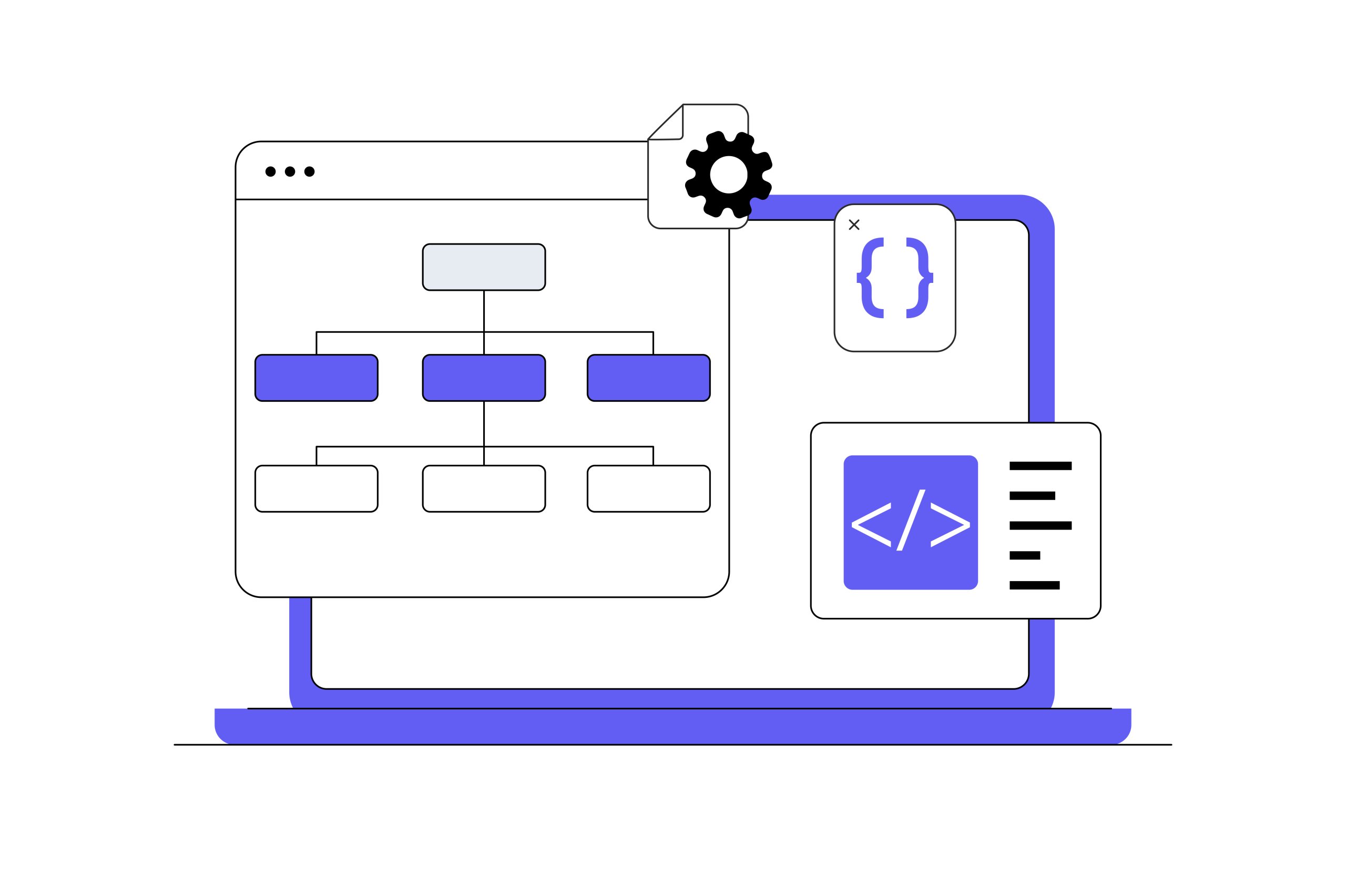
For direct execution, a shebang—the first line beginning #!—names the interpreter. For example, #!/bin/bash tells Linux to use Bash at that path. It belongs inside a Bash script, not in the terminal or at the top of an unknown download. The direct-launch pattern is:
chmod u+x ./script.sh
./script.sh
To select Bash yourself for a script documented to use it, run:
bash ./script.sh
For a separate Python script, select Python instead. Use the version and dependencies required by that script:
python3 ./script.py
Direct execution (target needs execute permission)
  ./mytool    -> native loading -> program runs
  ./script.sh -> shebang-selected interpreter -> script runs

Explicit interpreter (script needs read permission)
  bash ./script.sh -> Bash reads script -> script runs
Simplified launch model: compatible, permitted files with required components present. Native loading means Linux preparing the compiled program to run.
In the explicit-interpreter examples, the script ordinarily needs no execute bit: the interpreter reads it as input, regardless of its shebang.
The .sh extension doesn’t select Bash, and sh and Bash aren’t automatically interchangeable. Follow the publisher’s required shell; don’t pass a native binary to Bash.
How to run an AppImage
An AppImage is a portable application bundle, usually run without conventional package installation. In the bundle’s folder, use the same permission check and launch pattern as before. Following the AppImage instructions, add execute permission only if missing, then run the file:
chmod u+x ./Example.AppImage
./Example.AppImage
The second line starts the bundle. Even a bundle may need host components, so check its requirements. AppImage packaging also doesn’t provide sandboxing, which restricts an application’s access. Treat the bundle as an ordinary application with access to your files, not an isolated or automatically safe environment.
📝 Note: FUSE means Filesystem in Userspace. Older AppImage runtimes—the bundle’s startup component—may need host libraries; newer ones may bundle the relevant library. For FUSE errors, follow guidance matching your runtime and Linux release.
Can you run an executable by double-clicking?
Sometimes. For a trusted runnable file, inspect Properties → Permissions and enable its execute/program option if needed. “Executable as Program” is one possible label. Then use the launch action if your file manager supports it. Labels and behavior vary between desktops and versions.
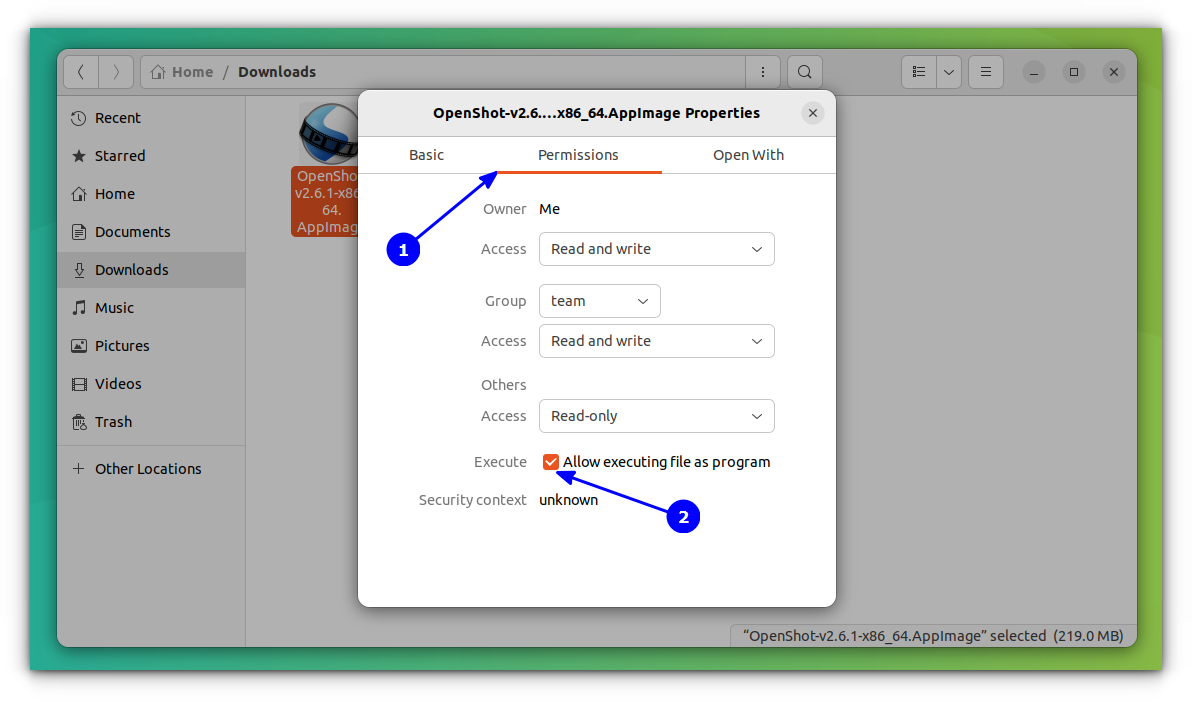
Example permissions dialog on Ubuntu 22.04. Screenshot: It’s FOSS.
Permission and launch policy are separate. GNOME’s help notes that an executable text file may still open in an application rather than run. For scripts or CLI tools, use the terminal to see output and errors.
The desktop route assumes a GUI, or graphical user interface. A headless system has no local desktop interface. If you access a headless server through Secure Shell (SSH), a remote terminal connection, there is no desktop file manager to double-click in.
What actually changes between Linux distributions?
A distribution is a packaged Linux-based system. One difference is how it installs software: Ubuntu/Debian commonly use .deb packages with APT, while Fedora uses RPM packages with DNF. APT and DNF are package managers: they install and track software and can obtain its dependencies, meaning other required software. Choose packages intended for your distribution and release.

Package management changes installation, not the basic rules for launching a standalone program. For that kind of download, first choose a Linux build.
- Then check its CPU architecture: the processor family and instructions it targets.
- Your system must also provide a suitable runtime, meaning the software support the program needs while running.
- This can include libraries, which provide shared supporting code.
To see the running system’s machine architecture name:
uname -m
The names x86_64 and amd64 commonly mean the same architecture; ARM64 is different. Use the result to select the CPU build, then check the publisher’s supported releases. A binary requiring newer libraries may fail on an older system despite a matching CPU. Differences in installed interpreters and desktop/file-manager policies can also explain why the same file behaves differently on two systems.
Windows .exe/.msi downloads don’t ordinarily run natively on Linux. Wine offers a compatibility route for some Windows applications, but support varies by application. Prefer a native Linux release when available.
Why won’t the executable run? Check the error, not just the permissions
Start with the exact message, using the terminal if double-clicking reveals nothing. Silence alone doesn’t prove success. The table translates documented execution-error distinctions into first checks, not diagnoses; wording varies by shell, loader, and version. Notice which command or file the message names: a missing file utility or interpreter isn’t the same as a missing application.
| Message or symptom | Likely possibilities | First sensible check |
|---|---|---|
| “Command not found” | Wrong name/path; bare name absent from PATH | Check the folder and case-sensitive filename; use the intended ./ path. |
| “Permission denied” | Missing execute permission, directory access, noexec, or security policy | Check file ownership and permissions with ls -l, then access to the containing directories. |
| “Cannot execute” / “Exec format error” | Wrong CPU/OS build, unsupported format, damage, or non-program data | Compare file classification and uname -m with the publisher’s supported Linux builds. |
| “No such file” / “Required file not found,” though target exists | Incorrect path, missing shebang interpreter, or missing native loader | Verify the path, then check that the required interpreter or runtime is present. |
| Missing shared library / library-version error | Absent dependency or incompatible host library | Compare the named library requirement with the publisher’s supported packages/build. |
| Script opens as text / no visible desktop result | File-manager policy, CLI without a window, or application exiting with an error | Launch from the terminal using the appropriate command above; read any reported error. |

Two less obvious causes deserve a closer look.
- A file can exist while its interpreter or loader—the software that starts a native binary—is missing.
- A filesystem’s noexec setting can also restrict direct execution despite correct file permissions.
For policy-related failures, consult the administrator or system documentation rather than disabling protections.
Once path and permission checks pass, stop repeating permission changes. Obtain the supported build or consult project/distribution documentation. Adding sudo or broadly writable permissions isn’t a generic fix. For library errors, don’t download arbitrary .so files or replace system libraries. An application can also report file-access errors after starting; these aren’t necessarily launch failures. For AppImage FUSE symptoms, return to the AppImage guidance above. Use this same diagnostic habit on a remote server.
On a VPS: the same rules, a different operating context
For example, suppose a backup script works on your laptop but won’t launch after you connect over SSH to a Linux virtual private server (VPS). On an AlexHost Ubuntu VPS, check the server’s copy of the script using the same approach above. Commands now operate on the remote machine, so the file and its interpreter must be present there. For a CLI utility, check any required libraries too. The laptop’s software and CPU architecture don’t establish what’s available on the server.

Full administrative access doesn’t make root, the administrator account, the default choice for application launches. Keep privileges appropriate to the task, and choose a CLI utility for an SSH-only workflow rather than expecting a graphical download to supply a desktop. A successful manual launch also isn’t a managed, always-on service; persistent applications need service management, a separate topic.
Whether the file is local or remote, the next decision comes from what it is and what the error says—not from adding more permissions:
- Identify what the file actually is.
- Choose a build supported by your system.
- Establish trust in its source.
- Use the appropriate run or install route; extract archives first.
- Investigate the specific error if it fails.