Open Ticket
  +373 79 600002
  Telegram Live Chat
  F.A.Q
F.A.Q  English
 Русский
  Română
  Deutsch
  Français
  Türkçe
  Español
  Português
  Українська
  български
  Polski
  Indonesia
  中文 (中国)






































































































































 on All Hosting Services






How to Connect to Your Windows 10/11 VPS via RDP
When your Windows VPS is first deployed, do not try to connect through RDP right away. First, complete the initial console login and change the default password. Once that is done, you can connect normally through Remote Desktop with the new credentials.
Before You Start
📝 Note: This setup process is the same for all Windows VPS services across all locations. Even if the screenshots show a specific location or platform, the same steps apply to any Windows VPS regardless of CPU or platform type.
- Make sure your VPS is active in the client area.
- You will need the VPS IP address and the current password from the service page.
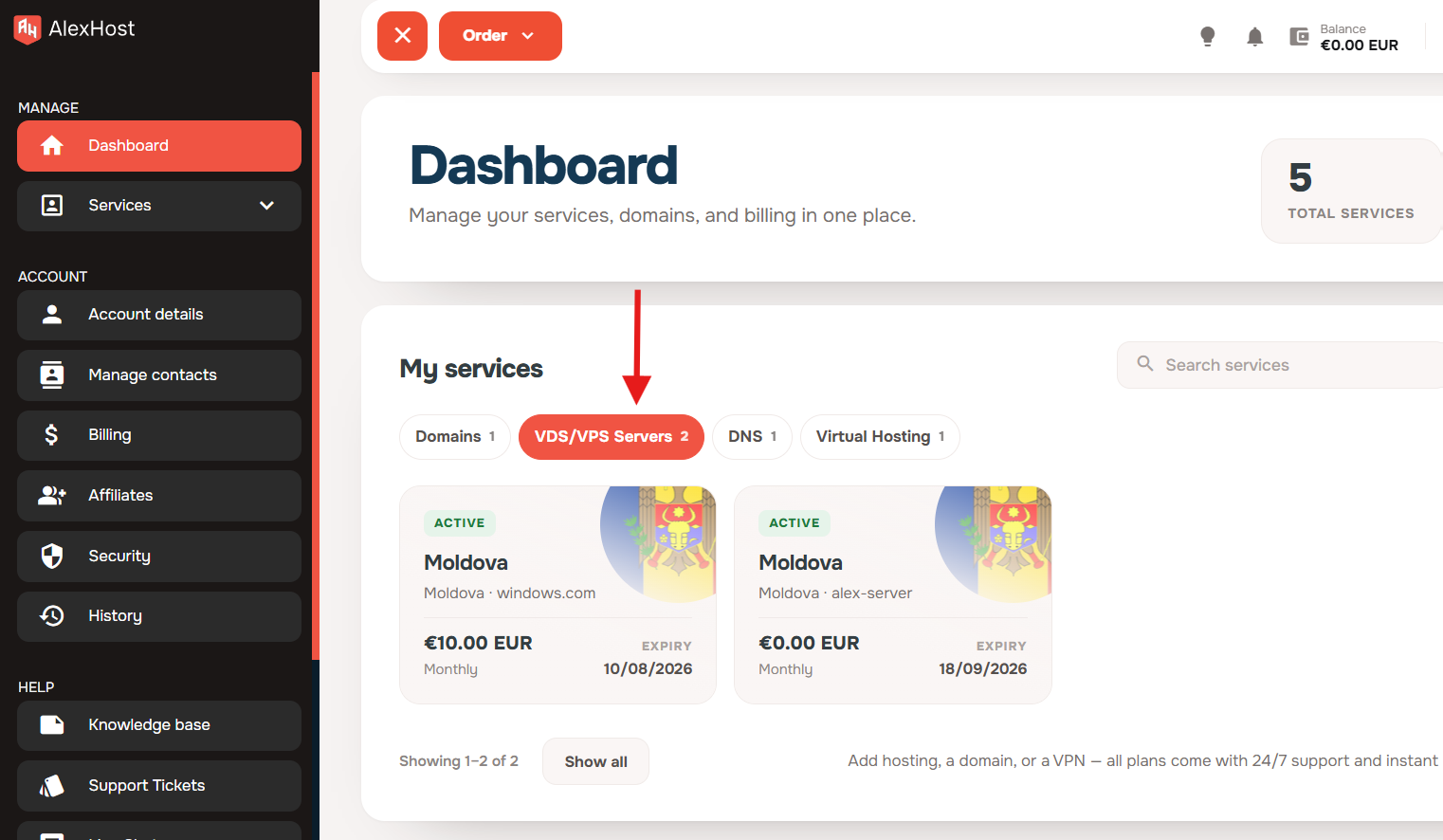
1. Open the VPS section in your dashboard
From the client dashboard, open the VDS/VPS Servers section.
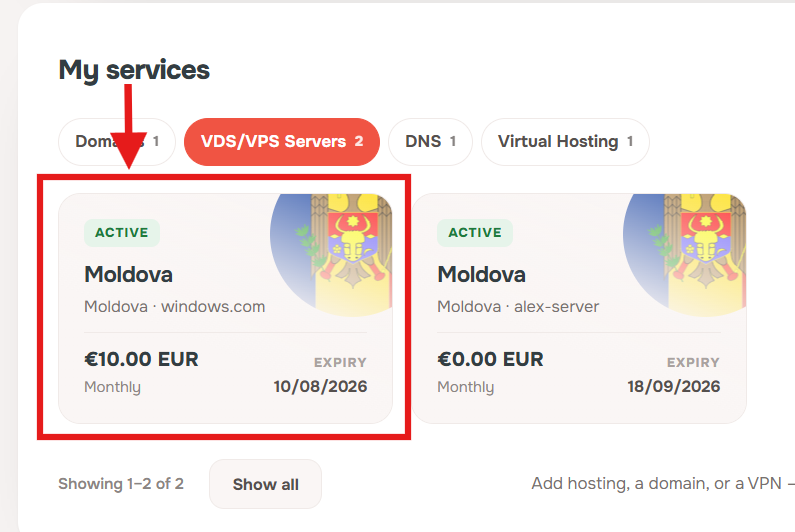
2. Open your Windows VPS
Click your Windows VPS to open its service page.
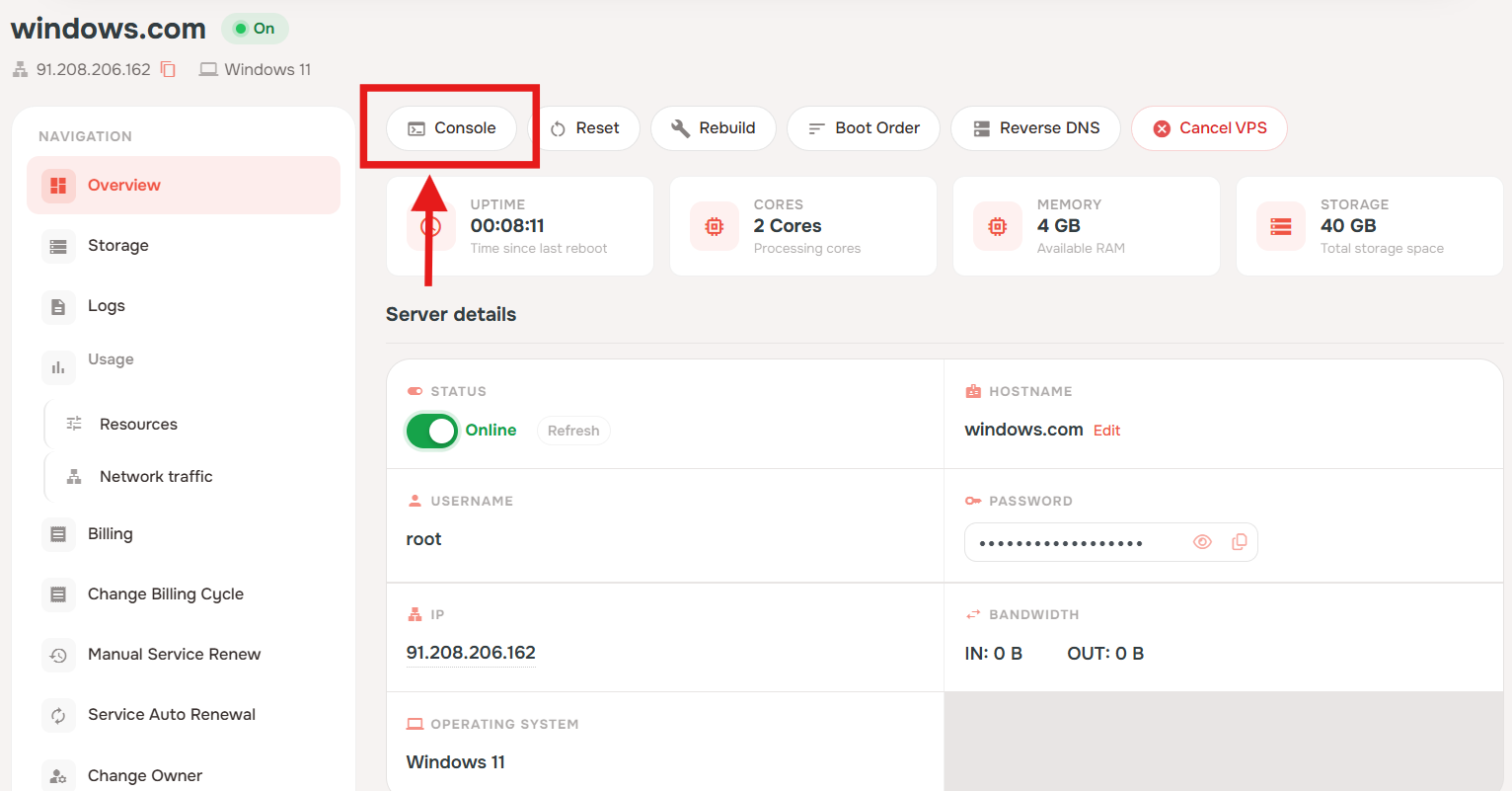
3. Open the web console
On the VPS service page, click Console.
If this is the first time you open the VPS after creation, wait for cloud-init to start and finish automatically before continuing. This usually takes around 1 to 2 minutes, and the VPS will reboot on its own when the process is complete.
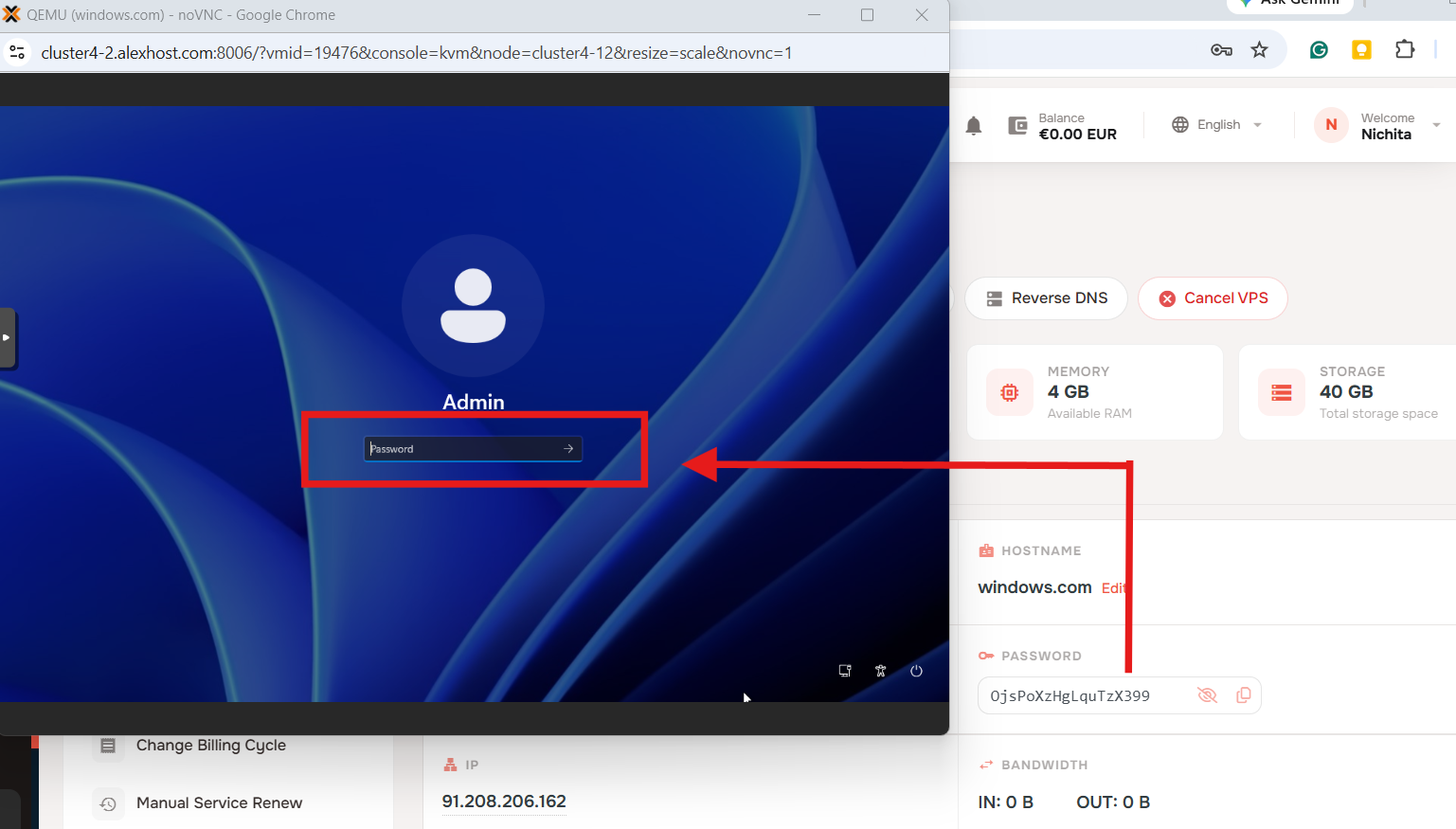
4. Sign in through the web console first
When the Windows sign-in screen appears, enter the current password shown in the service panel.
❗Important: the password must be entered manually in the console. Copy and paste does not work here.
5. Change the default password
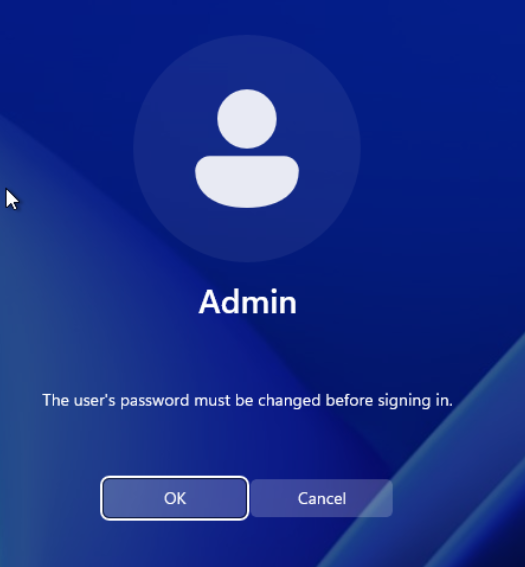
After the first login attempt, Windows will require a password change before sign-in. Click OK.
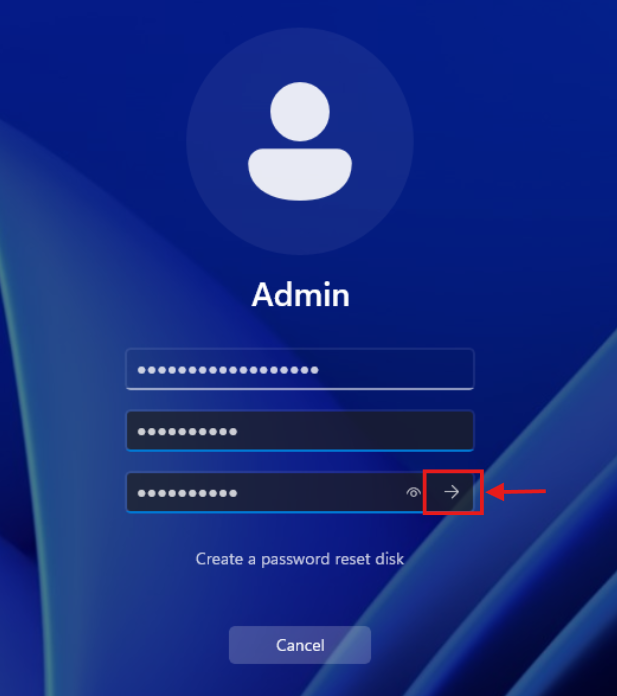
Enter a new password, confirm it, then click the arrow button to submit.
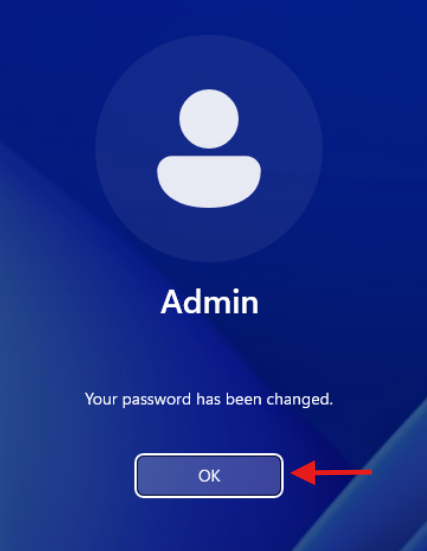
When you see the confirmation message, click OK.
6. Start the RDP connection
On your local computer, open Remote Desktop Connection, enter the VPS IP address in the Computer field, then click Connect.
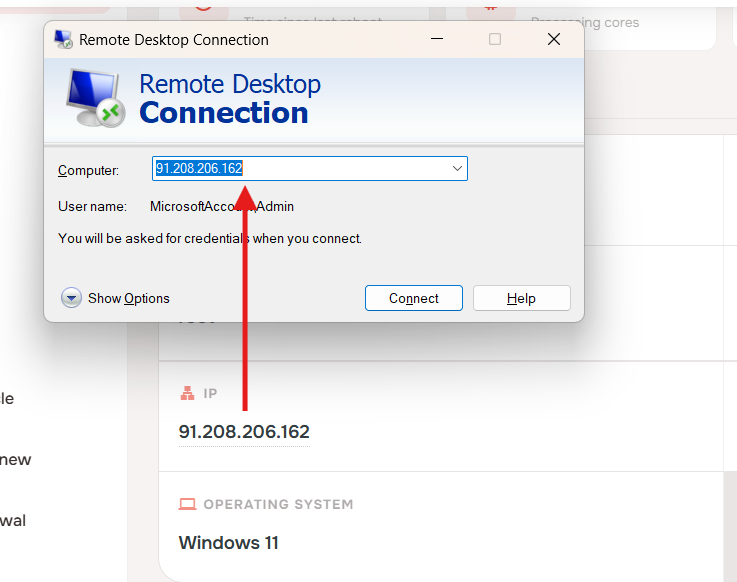
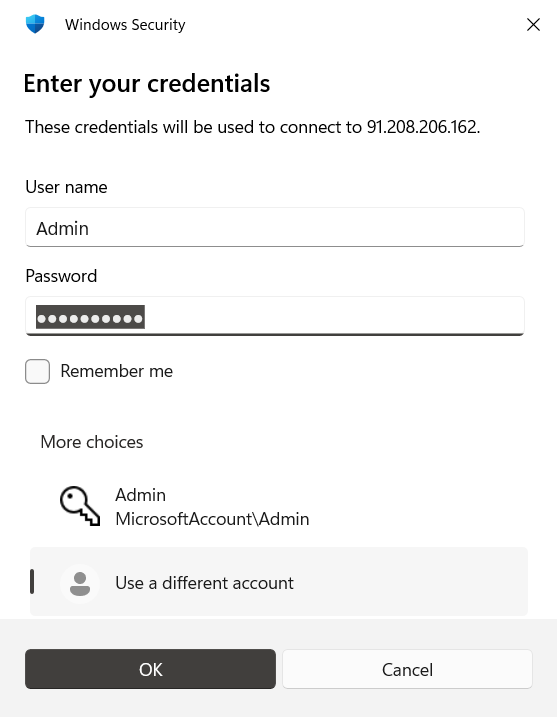
When Windows asks for credentials, use the following:
- Username:
Admin - Password: the new password you created in the previous step
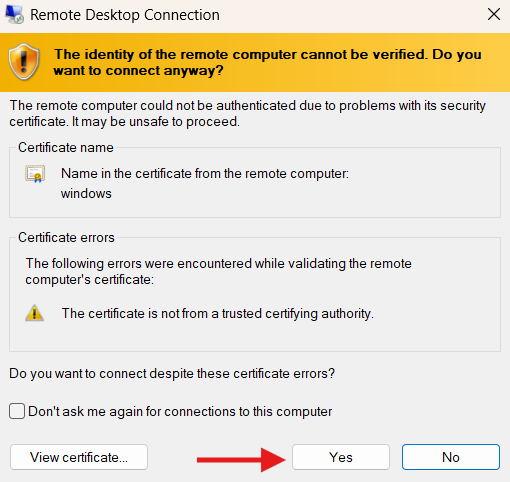
On the first RDP connection, you may see a certificate warning. This is expected on first connect. Click Yes to continue.
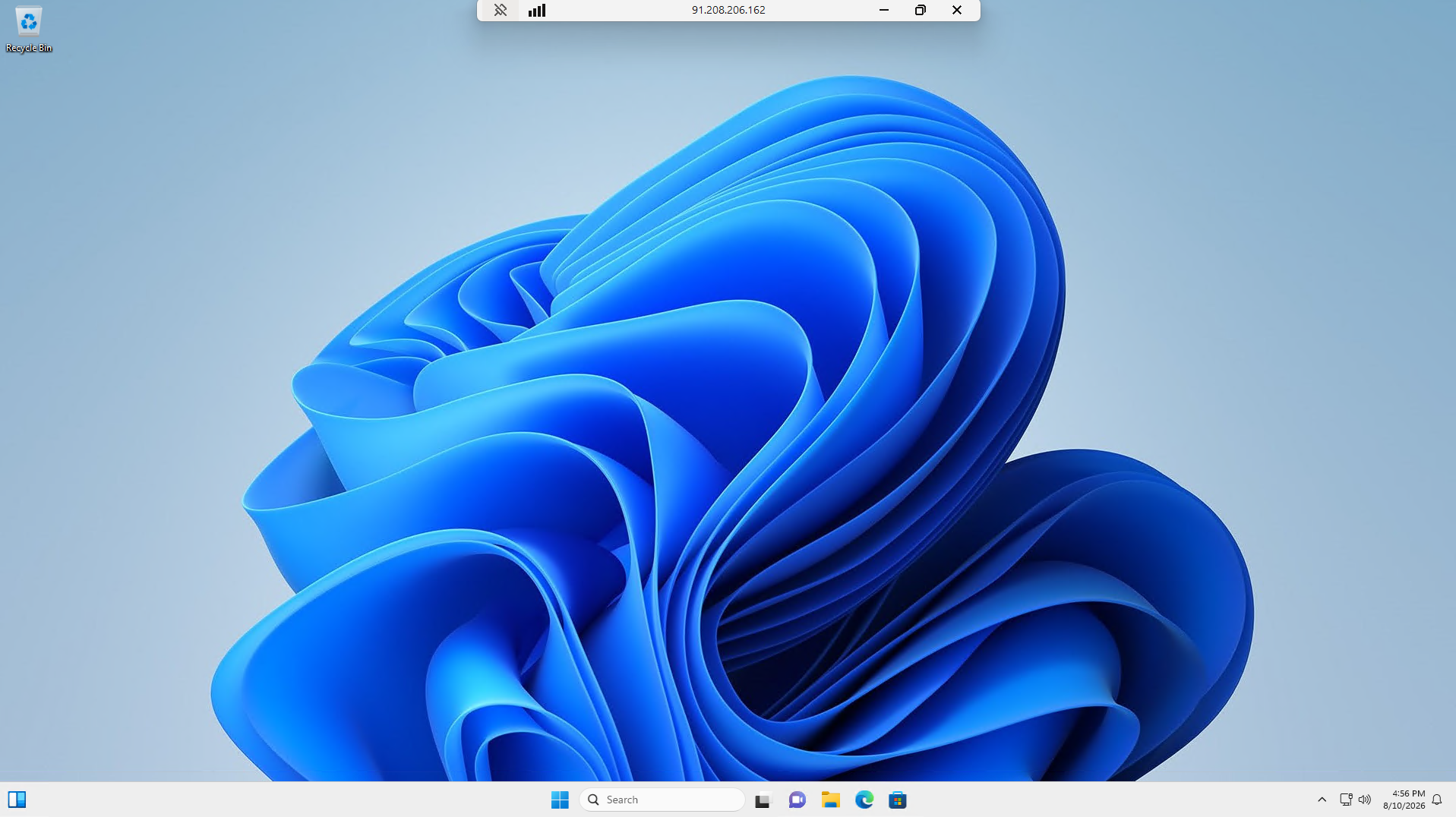
7. You are connected
After that, the remote Windows desktop will open and your VPS is ready to use.
Conclusion
Your Windows 10/11 VPS is now ready for remote access through RDP. For future logins, use the VPS IP address, the username Admin, and the password you created during the initial setup.