Open Ticket
  +373 79 600002
  Telegram Live Chat
  F.A.Q
F.A.Q  English
 Русский
  Română
  Deutsch
  Français
  Türkçe
  Español
  Português
  Українська
  български
  Polski
  Indonesia
  中文 (中国)






































































































































 on All Hosting Services









Best Ubuntu Text Editors: How to Choose the Right One for Your Workflow
Keywords: Quick Reference Before We Start
| Keyword | Brief explanation |
|---|---|
| 🖥️ GUI editor | An editor that opens in a graphical desktop window and is built for point-and-click or multi-window work. |
| ⌨️ Terminal editor | An editor that runs inside a text-based terminal window instead of a graphical desktop app. |
| 🔐 SSH | Secure Shell — the standard way to log in to and work on a remote Linux machine from another computer. |
| 🧱 Headless | A system with no graphical desktop interface, usually managed entirely from the command line. |
| ⚙️ Config file | A settings file that controls how an application, service, or part of the system behaves. |
| 🧰 IDE | Integrated Development Environment — a heavier tool that combines editing with features like debugging and project management. |
| 🧩 Extension | An add-on that gives an editor extra features such as language support, formatting, or remote tools. |
| 🌿 Git | A version-control system that tracks file changes and is widely used in software development. |
| 🔄 Refactor | Changing code structure or organization without changing what the code is supposed to do. |
| 🌐 Remote-SSH | A VS Code feature that lets you open and work on files stored on a remote machine through an SSH connection. |
| ☁️ VPS | Virtual Private Server — a rented remote Linux machine that behaves like your own server environment. |
| 🏢 Dedicated server | A full physical server assigned to one customer instead of a virtual slice shared on the same hardware. |
| 👑 Root access | Administrator-level control over a Linux system, allowing you to change system files, services, and core settings. |
| 🧠 LSP | Language Server Protocol — a standard that helps editors provide features like autocomplete, diagnostics, and go-to-definition for code. |
Best Ubuntu Text Editors in 2026: Choose the Right One

Editing a config file on your laptop is one job. Writing code all day in a desktop workspace is another. Fixing a broken setting over SSH on a headless server at 1 a.m. is another again. On Ubuntu, your editor choice affects speed, comfort, and how prepared you are when work jumps from a local machine to an Ubuntu VPS or dedicated server.
That is why this guide starts with workflow instead of hype. This is not a ranked list. We are narrowing the field to the Ubuntu editors that matter, comparing the trade-offs that matter, and ending with practical recommendations by use case. For most people, the smartest long-term answer is not one mythical perfect editor. It is one main editor for daily work plus one terminal fallback you can use under pressure.
Ubuntu Text Editors in One Minute
If you want the skim-reader version first, use this table to get to a shortlist fast. The deeper reasoning starts right after it.
| Use case | Recommended editor | Why it fits |
|---|---|---|
| Quick SSH or server config edits | Nano</> | Available almost everywhere, easy to read, visible shortcuts |
| Simple GUI editing and low-friction desktop use | GNOME Text Editor | Clean default experience for notes, configs, and small files |
| Lightweight coding on modest hardware | Geany | Code-aware without the weight of a bigger workspace |
| Full-featured daily development and remote workflows | VS Code | Strong extensions, Git tooling, debugging, and Remote-SSH |
| Fast cross-platform editing with low interface drag | Sublime Text | Polished, responsive, and consistent across systems |
| Terminal-first power path | Vim/Neovim | Extremely capable if you want keyboard-driven terminal editing |
This table mixes plain text editors and coding-focused editors on purpose, because real searches blur the category line. If you only take one idea from the article, take this one: most people are best served by choosing one primary editor and learning Nano as backup.
What Counts as a “Text Editor” in This Guide?

That is why GNOME Text Editor, Geany, Sublime Text, and VS Code all belong here even though they sit at different points on the spectrum. They all solve the same practical question: “What should I open when I need to work on text, config files, scripts, or code on Ubuntu?” Full IDEs are out of scope because this guide is about editing workflows, not heavyweight integrated suites.
📝 Note: Older Ubuntu and Linux tutorials may still say gedit. For current Ubuntu/GNOME framing, the modern name to look for is GNOME Text Editor.
The Real Split on Ubuntu: Terminal Editors vs GUI Editors
The most important split on Ubuntu is not beginner versus professional. It is where the editing happens: inside a graphical desktop, inside a terminal, or across both. GUI editors are the workbench. They give you space, visibility, tabs, search, and lower-friction navigation. Terminal editors are the multitool you can carry anywhere. They travel with the shell, work through SSH, and stay useful when desktop assumptions disappear.
📝 Note: Many Ubuntu VPS environments are headless. You log in to a shell over SSH; you do not get a desktop by default. That is why terminal editing becomes relevant quickly in server work.
GUI editors still deserve equal respect. For daily local work, they are easier to discover, easier to browse, and easier to live in for long sessions. If you are jumping between multiple files, scanning a project tree, comparing changes, or working with a Git-heavy development flow, a good GUI editor removes friction in ways terminal editing often does not.
Remote GUI-like workflows do exist, especially through tools such as VS Code Remote-SSH, but they add more moving parts than plain terminal editing. That is why the healthiest Ubuntu setup for many people is one editor for daily work plus one terminal fallback. Think of that fallback as the spare tire: not the main tool, but the one you are glad exists when something goes sideways.
What Actually Matters When Choosing an Ubuntu Editor

Next comes honesty about learning curve and hardware. Some editors are easy in five minutes and stay easy. Others pay off only after real repetition. There is no virtue in choosing a steep tool you will resent using. On an older laptop or a small VM, a lightweight editor can feel dramatically better than a feature-rich one that drags. Smooth responsiveness is a real productivity feature.
Then ask how much tooling you actually need. If your work is mostly notes, configs, shell scripts, and occasional code, you may not need a huge extension marketplace or deep workspace model. If you live in Git, debugging, multi-file refactors, and language tooling, those extras stop being extras. Cross-platform consistency matters too. If you move between Ubuntu, Windows, and macOS, a familiar editor reduces friction.
📝 Note: Remote workflow support deserves a more skeptical look than it usually gets online. There is a big difference between works anywhere you have a shell and works remotely if the server can support a richer stack.
| Shell-based tools | Remote IDE tools |
|---|---|
| Nano, Vim-family tools | VS Code Remote-SSH |
| Needs only a terminal session | Needs SSH, compatibility, and enough remote resources |
| Best on tiny or stripped-down servers | Best when the remote machine can comfortably run the richer stack |
| Fast and reliable even on minimal setups | Microsoft guidance: 1 GB RAM minimum, 2 GB RAM + 2 CPU cores recommended |
Finally, consider licensing and future-proofing, but do not let identity do your choosing for you. Some readers care deeply about open source; others are comfortable with a proprietary tool if the workflow win is real. More important is this: choose for the work you do often, not the person you imagine becoming later. If you may eventually manage an Ubuntu VPS or dedicated server, terminal familiarity is worth building. There is no prize for forcing yourself into the wrong editor culture.
The Main Ubuntu Editors Worth Considering
You do not need a list of twenty Ubuntu editors. You need a tight shortlist of tools that solve real problems well. The six below cover almost every beginner and intermediate workflow without turning the article into editor-war noise.
Nano
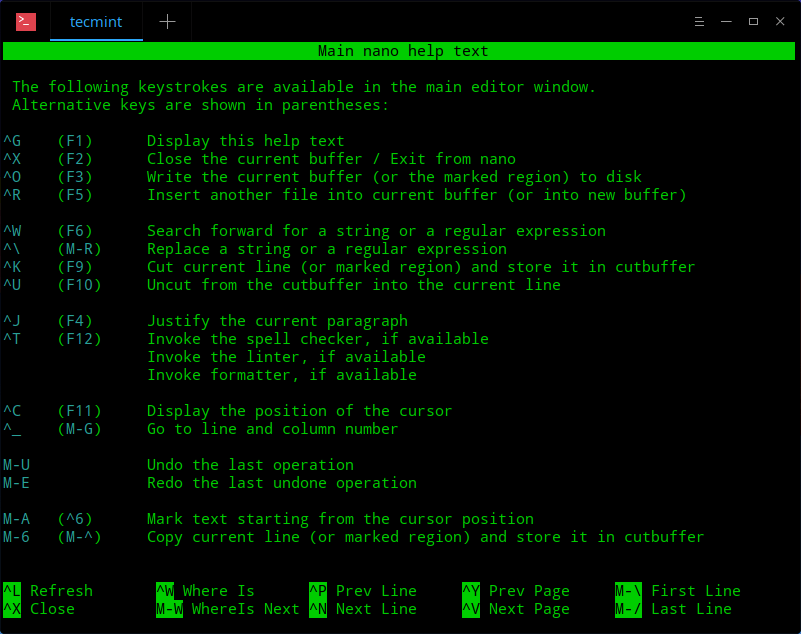
| What it is: | Nano is the easiest terminal editor to start using. |
| Best for: | quick SSH fixes, config edits, and anyone who wants a low-stress terminal safety tool. |
| Why it works especially well on Ubuntu: | it is commonly available, its shortcut hints are visible at the bottom of the screen, and it behaves like the pocket screwdriver of Linux editing—small, obvious, and immediately useful. |
| Where it struggles: | long coding sessions, project navigation, and advanced editing flows. |
| Future you note: | even if Nano never becomes your daily editor, learning it now pays off the first time you need to fix something on a remote server with no GUI. |
Vim/Neovim
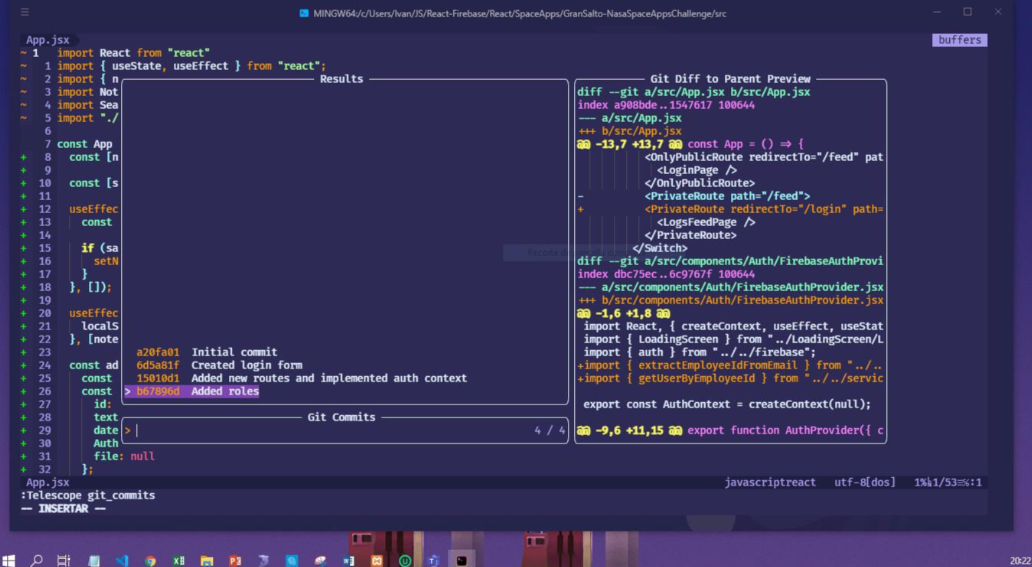
| What it is: | Vim and Neovim are a terminal-first editing family built around modes, keyboard speed, and extensibility. |
| Best for: | readers who genuinely want a terminal-centered workflow and are willing to invest in learning it. |
| Why it works especially well on Ubuntu: | it runs beautifully in local terminals, over SSH, and on minimal systems, while Neovim pushes the model forward with Lua-based configuration and built-in LSP momentum. |
| Where it struggles: | the learning curve is real, and choosing it for prestige rather than fit is a reliable way to create frustration. |
| Future you note: | if terminal work becomes central to your life, this path scales a long way—but it should be a deliberate choice, not a status badge. |
GNOME Text Editor
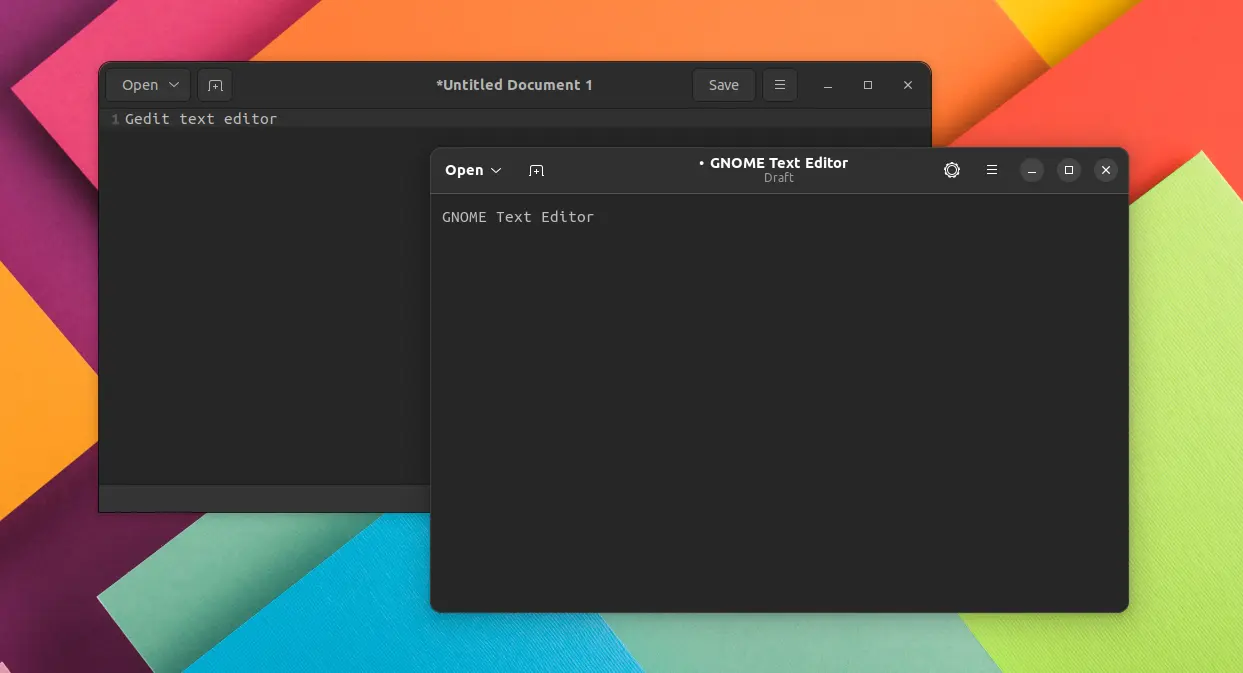
| What it is: | GNOME Text Editor is the modern low-friction GUI choice for straightforward editing on a GNOME-based Ubuntu desktop. |
| Best for: | beginners, notes, config files, small scripts, and people who want a clean window with minimal setup. |
| Why it works especially well on Ubuntu: | it matches the desktop environment many Ubuntu users already know, and older gedit-era tutorials no longer reflect the current default framing. |
| Where it struggles: | it is not meant to be a deep programming workspace. |
| Future you note: | it is an excellent place to start, but if your coding needs expand, you will probably pair it with something more development-focused. |
Geany
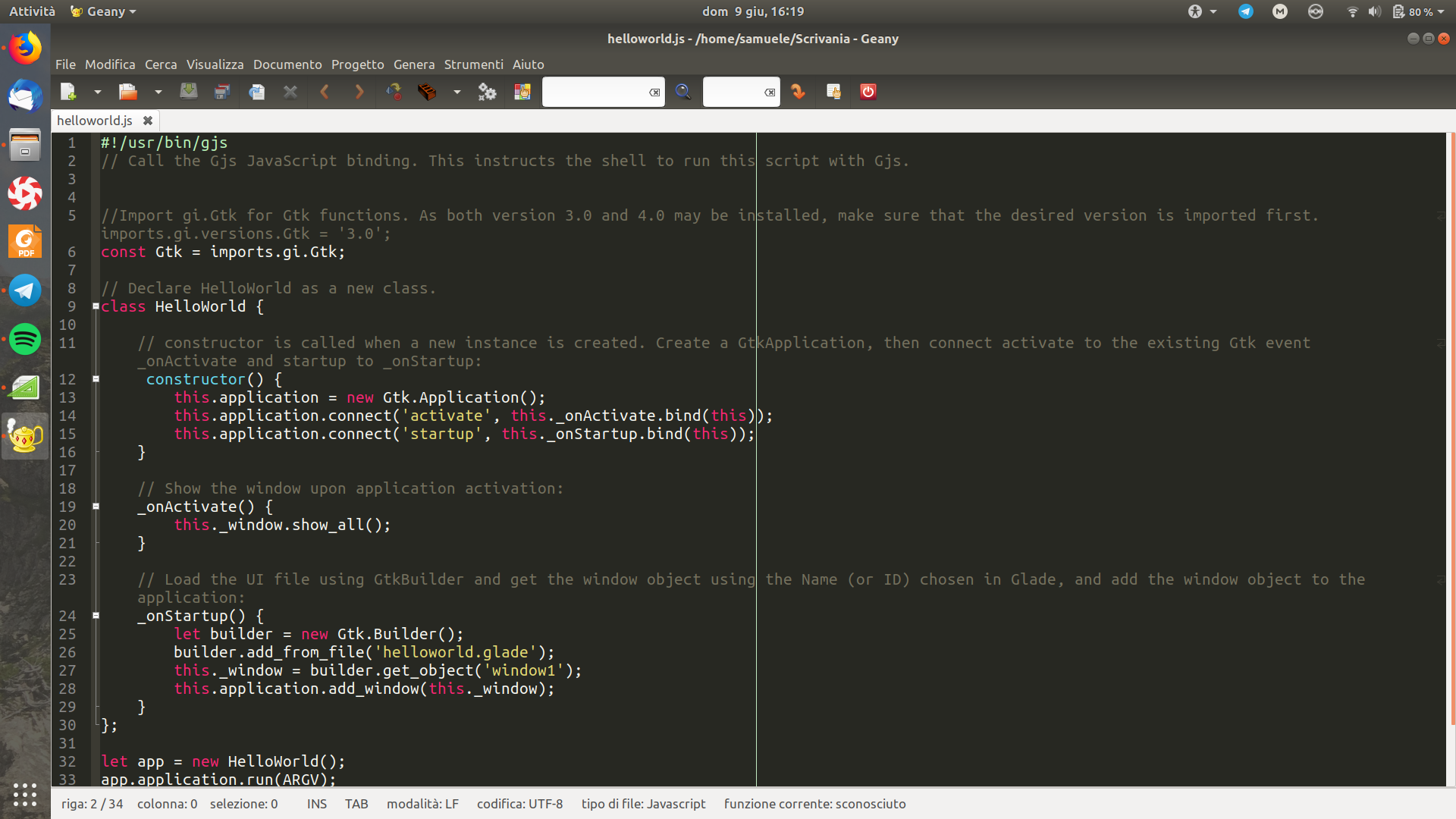
| What it is: | Geany is a lightweight, code-aware editor that sits between a basic GUI editor and a larger developer platform. |
| Best for: | readers who write code regularly but do not want the footprint or ecosystem overhead of a heavier tool. |
| Why it works especially well on Ubuntu: | it feels fast on modest hardware, supports many languages, and gives you practical coding features without burying you in interface layers. |
| Where it struggles: | its ecosystem and remote workflow story are thinner than VS Code’s. |
| Future you note: | if your machine is older or you value speed over extensibility, Geany can stay useful much longer than people expect. |
VS Code
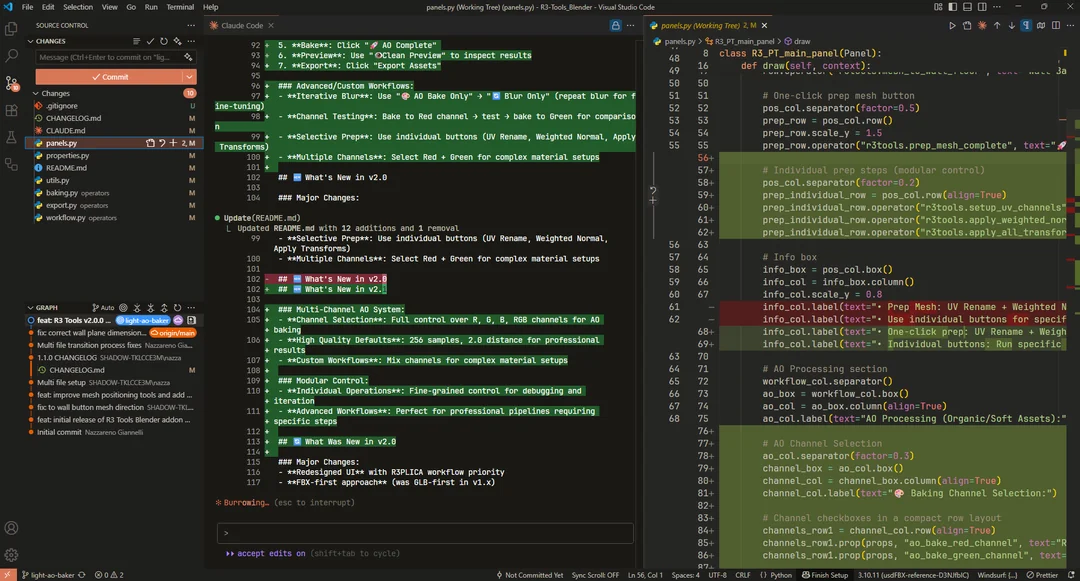
| What it is: | VS Code is the mainstream all-rounder: a code editor with a huge extension ecosystem, strong Git integration, debugging, and remote development features. |
| Best for: | active developers who spend a lot of time coding on a desktop or laptop and want one capable primary editor. |
| Why it works especially well on Ubuntu: | it gives Ubuntu users a full modern development workspace without demanding terminal-first habits, and Remote-SSH can bridge local and remote work elegantly. |
| Where it struggles: | it is heavier than the other options here, and remote workflows are not free—they depend on an SSH server and enough remote RAM and CPU to run the remote side comfortably. |
| Future you note: | if you want one editor that grows with a mainstream development path, this is the default recommendation. |
Sublime Text
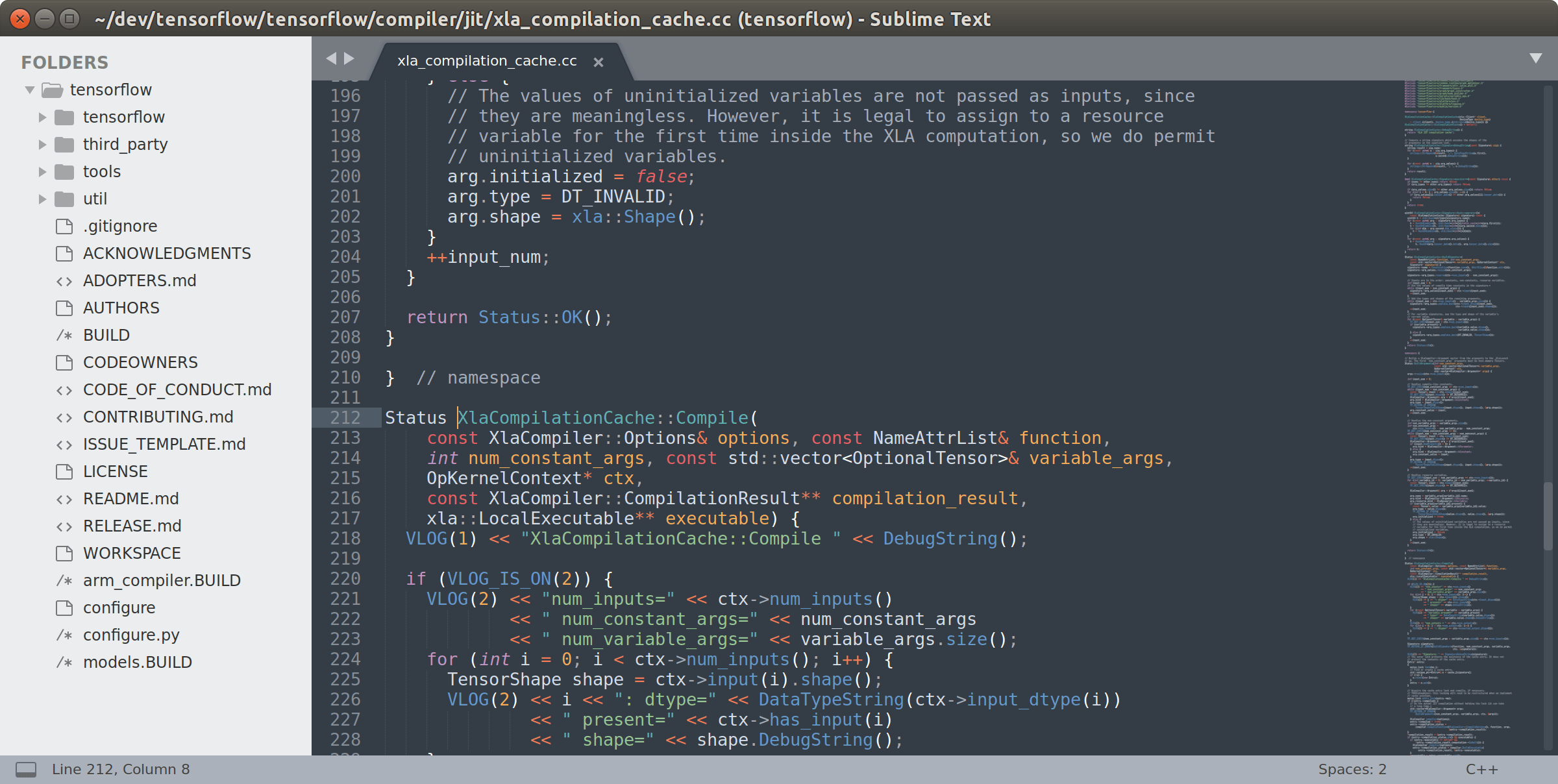
| What it is: | Sublime Text is a fast, polished cross-platform editor built around speed, responsiveness, and a lower-interface-drag experience. |
| Best for: | people who want a capable editor that feels lighter and less workspace-heavy than VS Code. |
| Why it works especially well on Ubuntu: | it stays snappy, looks consistent across operating systems, and handles serious editing without feeling oversized. |
| Where it struggles: | its licensing is proprietary, and its surrounding ecosystem is not as central to modern developer workflows as VS Code’s. |
| Future you note: | if you work across Linux, macOS, and Windows and care about a consistent fast editor more than a giant extension universe, Sublime is an unusually durable choice. |
Honorable Mentions
Kate is a strong KDE-native option with more depth than many people expect, especially if you live in that desktop ecosystem. Emacs remains a powerful universe in its own right. Both are real choices. They sit outside the main beginner-to-intermediate decision center of this guide, where a tighter shortlist is more helpful than symbolic completeness.
Side-by-Side Comparison Table
If the profiles above gave you the feel of each editor, this table is the fast filter. Use it to eliminate obvious mismatches before you overthink the final choice.
| Editor | Ease to Start | SSH/Headless Readiness | Resource Footprint | Extensibility | Remote Workflow Fit | Cross-Platform Fit | Best Use Case |
|---|---|---|---|---|---|---|---|
| Nano | Very easy | High | Very low | Low | High for direct SSH edits | High | Quick terminal edits and server fixes |
| Vim/Neovim | Hard | High | Very low | Very high | High | High | Terminal-first development |
| GNOME Text Editor | Very easy | Low | Low | Low | Low | Low | Notes, configs, small local files |
| Geany | Easy | Low | Low | Medium | Low to medium | Medium | Lightweight coding on modest hardware |
| VS Code | Easy to medium | Medium | High | Very high | Very high | High | Daily development and richer remote workflows |
| Sublime Text | Easy | Low | Very low | Medium | Medium | High | Fast cross-platform editing |
A high score across several columns does not make an editor the universal winner. Use the table to remove obvious bad fits, keep two finalists, and carry them into the recommendations below.
Which Editor Should You Choose? A Practical Decision Framework

💡 Tip: Build a two-editor toolkit
- Pick one primary editor for the work you do most often.
- Learn Nano well enough to survive remote edits, config changes, and headless server sessions.
- Choose Vim/Neovim only if you actually want the terminal-first power path, not because the internet made it sound mandatory.
For low-resource local machines, choose Geany if you still want programming awareness without heavyweight tooling. For regular SSH or server work, make Nano non-negotiable as your fallback, and consider Vim/Neovim only if remote terminal editing will be a major part of your workflow. This is where the future-proofing becomes concrete: if you later manage an AlexHost Ubuntu VPS or dedicated server with full root access, terminal comfort starts saving time immediately.
For cross-platform work across Linux, macOS, and Windows, Sublime Text is the best speed-first option, while VS Code is the best ecosystem-first option. If your thought is, “I want one tool that grows with me,” the default answer is still VS Code. If your thought is, “I want to grow into a keyboard-driven terminal workflow,” then Vim/Neovim is the deliberate specialist path.
The mistake is looking for one perfect editor that solves every situation forever. The better strategy is more modest and more durable: choose the editor that fits your main workflow now, then pair it with a terminal fallback. That combination travels further than most people expect.
Common Mistakes People Make When Choosing an Editor
⚠️ Reality check: The most popular or most customizable editor in a forum thread is often the best fit for the person posting—not automatically the best fit for your hardware, workflow, or patience.
Mistake 1: choosing by hype, prestige, or power-user popularity alone. The consequence is usually slow onboarding and avoidable friction. A high ceiling is useless if the first month feels like punishment. Ubuntu editing is not a status competition. It is a workflow choice.
Mistake 2: ignoring SSH/server reality because today’s work is local, or overestimating how much customization you truly want. The consequence is a rude surprise later: you feel productive in a polished desktop editor, then hit a headless server and realize you never built a fallback. Or you choose an endlessly customizable tool and spend more energy tuning it than using it.
Mistake 3: assuming one editor must solve every situation, and confusing “best for power users” with “best for me.” The consequence is regret in both directions: either the editor is too much tool for your everyday work, or it is the wrong tool when the environment changes. It is normal to split roles. In practice, that is often the most professional choice.
Conclusion: Pick for Today, Prepare for Tomorrow

The opening confusion makes more sense now. Nano, Vim, VS Code, GNOME Text Editor, Geany, and Sublime Text can all be “best” answers because they are answers to different workflow questions. Once you replace hype with context—desktop or SSH, light or deep, simple or extensible—the noise drops fast.
So pick for the work you actually do today, not for an imaginary future self. Make one editor your main workspace, keep one terminal fallback in your toolkit, and you will be prepared for the moment local editing turns into remote Ubuntu administration. If that later step leads you to an Ubuntu VPS at AlexHost or anywhere else, the skill that pays off first is rarely hype. It is readiness.