Open Ticket
  +373 79 600002
  Telegram Live Chat
  F.A.Q
F.A.Q  English
 Русский
  Română
  Deutsch
  Français
  Türkçe
  Español
  Português
  Українська
  български
  Polski
  Indonesia
  中文 (中国)






































































































































 on All Hosting Services






“ping: command not found” — How to Install and Use Ping in Ubuntu
The error `ping: command not found` appears in Ubuntu when the iputils-ping package is absent from the system. This is common on minimal installations, cloud VPS images, and Docker containers where non-essential utilities are stripped out to reduce image size. The fix is a single `apt` command: `sudo apt install iputils-ping`. This article explains why the package is missing, how to install it correctly across different Ubuntu environments, and how to use `ping` effectively for real-world network diagnostics.
What the Ping Command Actually Does
`ping` is a network diagnostic utility that sends ICMP Echo Request packets to a target host and listens for ICMP Echo Reply responses. The round-trip time (RTT) for each packet is measured in milliseconds, giving you a precise signal about network latency, reachability, and stability.
Under the hood, `ping` relies on the Internet Control Message Protocol (ICMP), defined in RFC 792. It operates at the network layer (Layer 3 of the OSI model), which means it bypasses TCP and UDP entirely. This makes it useful for isolating whether a connectivity problem is at the IP routing level versus the application or transport layer.

Core Use Cases
- Reachability testing — Confirms whether a remote host is alive and responding.
- Latency measurement — Reports RTT in milliseconds; elevated RTT indicates network congestion or a geographically distant server.
- Packet loss detection — Dropped ICMP replies point to hardware faults, overloaded routers, or unstable links.
- Network path validation — Useful for verifying that a newly configured route or firewall rule does not block traffic.
- Firewall and ICMP filtering detection — If `ping` times out but TCP services respond, the firewall is likely dropping ICMP traffic specifically.
- DNS resolution verification — Pinging a hostname (rather than an IP) confirms that DNS resolution is working correctly.
Why Is Ping Missing in Ubuntu?
Ubuntu's full desktop installation includes `ping` by default. However, several common scenarios result in a system where the binary is absent:
- Minimal server installs — Ubuntu Server's minimal ISO deliberately omits many utilities to keep the footprint small.
- Cloud and VPS images — Providers often distribute stripped-down Ubuntu images for faster provisioning. If you are running a VPS Hosting instance, you may encounter this on first boot.
- Docker and LXC containers — Official Ubuntu base images (`ubuntu:22.04`, `ubuntu:24.04`) do not include `iputils-ping` by default.
- Automated deployments and CI/CD pipelines — Scripted environments built from minimal base images frequently lack standard networking tools.
- Chroot environments and WSL — Windows Subsystem for Linux and chroot jails may also omit the package.
The binary itself lives at `/bin/ping` (or `/usr/bin/ping` on newer systems). If that path does not exist, the shell returns `command not found`. You can confirm whether the binary is simply missing versus being in a non-standard path with:
“`bash
which ping
or
type ping
“`
If both return nothing, the package is not installed.
How to Install Ping in Ubuntu (Step-by-Step)
Step 1: Update the Package Index
Always refresh the local package index before installing anything. This ensures `apt` resolves the latest available package versions and avoids stale metadata errors:
“`bash
sudo apt update
“`
On a Dedicated Server or a freshly provisioned VPS, this step is especially important because the package cache may be days or weeks out of date.
Step 2: Install iputils-ping
The `ping` binary on Ubuntu is provided by the iputils-ping package, which is part of the broader `iputils` suite maintained by the Linux kernel community:
“`bash
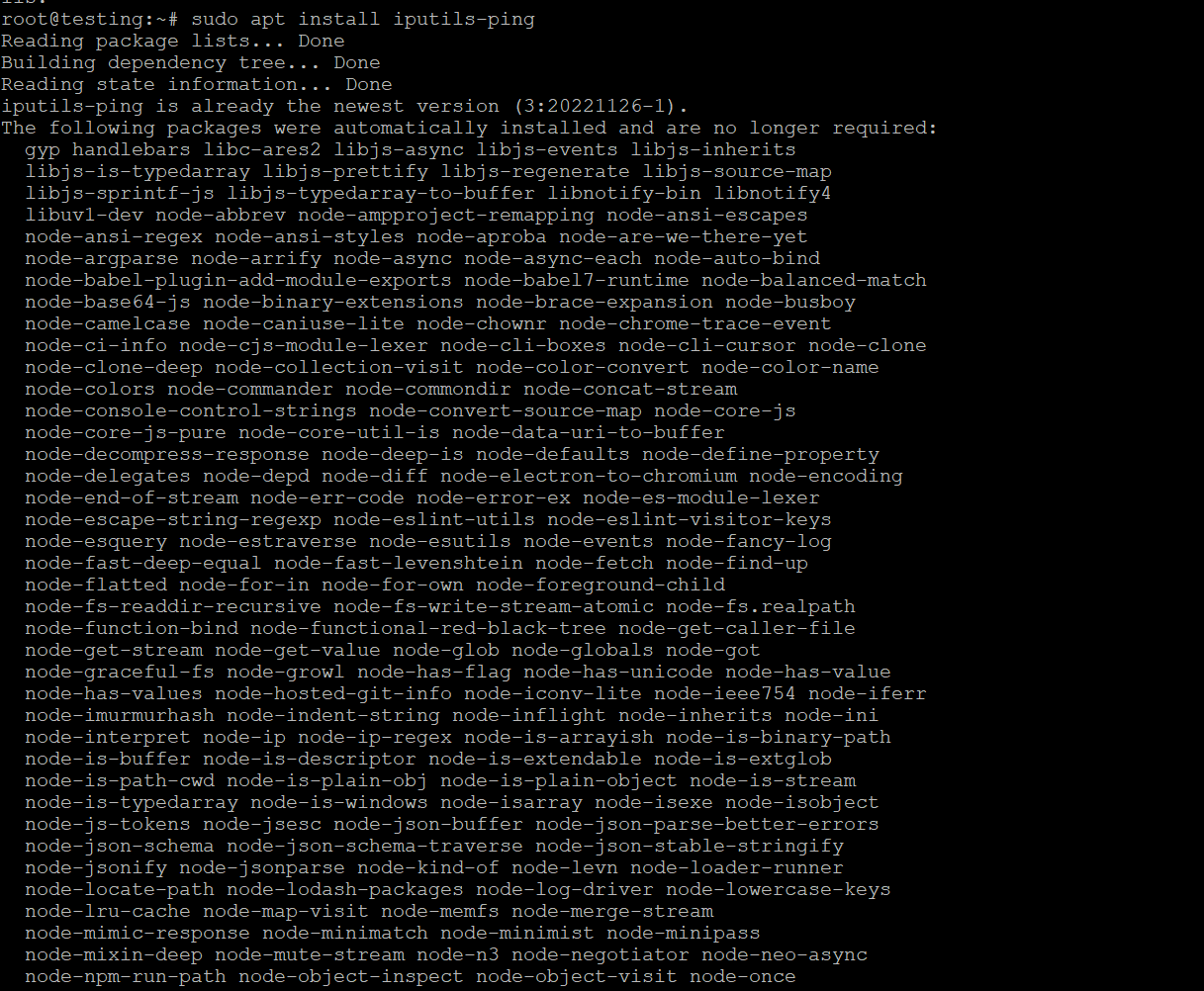
sudo apt install iputils-ping
“`
When prompted with `Do you want to continue? [Y/n]`, press `Y` and `Enter`. The package is small (typically under 100 KB) and installs in seconds.
Step 3: Verify the Installation
Confirm the binary is now available and functional:
“`bash
ping -c 4 google.com
“`
The `-c 4` flag limits the output to 4 packets. A successful response looks like this:
“`
PING google.com (142.250.185.46) 56(84) bytes of data.
64 bytes from lga34s32-in-f14.1e100.net (142.250.185.46): icmp_seq=1 ttl=118 time=12.4 ms
64 bytes from lga34s32-in-f14.1e100.net (142.250.185.46): icmp_seq=2 ttl=118 time=11.9 ms
64 bytes from lga34s32-in-f14.1e100.net (142.250.185.46): icmp_seq=3 ttl=118 time=12.1 ms
64 bytes from lga34s32-in-f14.1e100.net (142.250.185.46): icmp_seq=4 ttl=118 time=12.3 ms
— google.com ping statistics —
4 packets transmitted, 4 received, 0% packet loss, time 3004ms
rtt min/avg/max/mdev = 11.9/12.175/12.4/0.185 ms
“`
You want to see 0% packet loss and consistent RTT values. High variance in RTT (`mdev`) signals network jitter, which matters for latency-sensitive applications.
Step 4: Check the Installed Binary Path and Permissions
“`bash
which ping
ls -la $(which ping)
“`
On Ubuntu 20.04 and later, `ping` no longer requires the setuid bit. Instead, it uses Linux capabilities (`cap_net_raw`) to send raw ICMP packets without root privileges. You can inspect this with:
“`bash
getcap $(which ping)
Expected output: /usr/bin/ping cap_net_raw=ep
“`
This is a security improvement over older setuid-based implementations.
Installing Ping Inside a Docker Container
If you are working inside an Ubuntu-based Docker container, the process is identical but you may need to run commands as root (the default user in most base images):
“`bash
apt update && apt install -y iputils-ping
“`
The `-y` flag auto-confirms the prompt, which is essential for non-interactive Dockerfile builds. To bake `ping` into a custom image, add it to your `Dockerfile`:
“`dockerfile
FROM ubuntu:22.04
RUN apt update && apt install -y iputils-ping && rm -rf /var/lib/apt/lists/*
“`
The `rm -rf /var/lib/apt/lists/*` line clears the package cache to keep the image layer small — a best practice for production container images.
Installing Ping on Ubuntu Without Internet Access (Offline Method)
On air-gapped servers or isolated network segments, `apt` cannot reach external repositories. In this case, you have two options:
Option 1: Transfer the .deb package manually
On a machine with internet access, download the package:
“`bash
apt download iputils-ping
“`
Transfer the `.deb` file to the target machine via `scp` or a USB drive, then install it:
“`bash
sudo dpkg -i iputils-ping_*.deb
“`
Option 2: Use a local mirror or internal APT repository
Configure `/etc/apt/sources.list` to point to an internal mirror that has the package cached. This is the standard approach for enterprise environments with strict egress controls.
Alternative Tools If Ping Is Blocked or Unavailable
ICMP traffic is frequently blocked by firewalls, cloud security groups, or hosting providers. If `ping` consistently times out despite the host being reachable, consider these alternatives:
| Tool | Protocol | Primary Use | Install Command |
|---|---|---|---|
| `ping` | ICMP | Basic reachability and latency | `apt install iputils-ping` |
| `traceroute` | ICMP / UDP | Hop-by-hop path analysis | `apt install traceroute` |
| `mtr` | ICMP | Continuous path + latency stats | `apt install mtr` |
| `nmap` | TCP/UDP/ICMP | Port scanning, host discovery | `apt install nmap` |
| `curl` / `wget` | HTTP/HTTPS | Application-layer reachability | `apt install curl` |
| `nc` (netcat) | TCP/UDP | Raw socket connectivity testing | `apt install netcat-openbsd` |
| `hping3` | TCP/UDP/ICMP | Custom packet crafting | `apt install hping3` |
| `fping` | ICMP | Bulk host reachability testing | `apt install fping` |
Key insight: `mtr` (Matt's Traceroute) is arguably more useful than `ping` for diagnosing intermittent packet loss because it continuously probes every hop in the path and displays per-hop loss percentages in real time. On production servers — including those running VPS with cPanel — `mtr` should be your first tool when a customer reports sporadic connectivity issues.
Common Errors and How to Fix Them
"permission denied" or "operation not permitted"
This occurs when the `cap_net_raw` capability is missing from the binary, or when running inside a container with restricted Linux capabilities:
“`bash
Check capabilities
getcap /usr/bin/ping
Restore if missing
sudo setcap cap_net_raw+ep /usr/bin/ping
“`
Inside Docker, you may need to run the container with `–cap-add NET_RAW` or `–privileged` (use `–privileged` only in trusted, isolated environments):
“`bash
docker run –cap-add NET_RAW ubuntu:22.04 ping -c 2 8.8.8.8
“`
"unable to locate package iputils-ping"
This means `apt` cannot find the package in its current repository list. Causes and fixes:
- Stale package index — Run `sudo apt update` first.
- Broken sources.list — Verify `/etc/apt/sources.list` contains valid Ubuntu repository entries.
- Minimal container with no universe repo — Add the universe repository: `sudo add-apt-repository universe`.
- No network connectivity — Test with `curl https://archive.ubuntu.com` to confirm the machine can reach Ubuntu's package servers.
"ping: connect: Network is unreachable"
The binary is installed, but the system has no configured network route. This is a network configuration issue, not a `ping` issue. Diagnose with:
“`bash
ip route show
ip addr show
“`
If the default route is missing, add it:
“`bash
sudo ip route add default via <gateway_ip>
“`
"Name or service not known" (DNS failure)
`ping google.com` resolves the hostname before sending ICMP packets. If DNS is broken, you will see this error. Test by pinging an IP directly:
“`bash
ping -c 2 8.8.8.8
“`
If that succeeds, the issue is DNS-specific. Check `/etc/resolv.conf` and ensure a valid nameserver is configured.
Essential Ping Flags Every Sysadmin Should Know
| Flag | Description | Example |
|---|---|---|
| `-c <n>` | Send exactly n packets then stop | `ping -c 5 8.8.8.8` |
| `-i <sec>` | Interval between packets (default: 1s) | `ping -i 0.2 8.8.8.8` |
| `-s <bytes>` | Set packet payload size (default: 56 bytes) | `ping -s 1400 8.8.8.8` |
| `-t <ttl>` | Set IP Time-To-Live value | `ping -t 64 8.8.8.8` |
| `-W <sec>` | Timeout waiting for each reply | `ping -W 2 8.8.8.8` |
| `-q` | Quiet mode — only show summary | `ping -q -c 10 8.8.8.8` |
| `-f` | Flood ping (requires root) | `sudo ping -f 8.8.8.8` |
| `-4` / `-6` | Force IPv4 or IPv6 | `ping -6 ipv6.google.com` |
| `-D` | Print timestamp before each line | `ping -D -c 5 8.8.8.8` |
| `-O` | Report outstanding replies (shows packet loss inline) | `ping -O 8.8.8.8` |
Practical tip: Use `ping -s 1472 -M do <gateway>` to test MTU path discovery. The `-M do` flag sets the "Don't Fragment" bit; if the packet exceeds the path MTU, you will receive a "Frag needed" ICMP message, which is the definitive way to diagnose MTU-related TCP black holes — a common issue on VPN tunnels and certain cloud networking configurations.
Security Considerations: When to Disable ICMP
While `ping` is invaluable for diagnostics, unrestricted ICMP on public-facing servers carries risk:
- ICMP flood attacks (ping flood) — High-volume ICMP traffic can saturate bandwidth or CPU on older hardware.
- Network reconnaissance — Responding to ICMP reveals that a host is alive, which aids attackers in mapping your infrastructure.
- Smurf attacks — Amplified ICMP broadcast attacks (largely mitigated on modern networks but still relevant on legacy infrastructure).
For production servers — particularly those hosting web applications or Email Hosting services — a reasonable policy is to allow ICMP from trusted management IPs only, and rate-limit or block ICMP from the public internet using `iptables` or `nftables`:
“`bash
Allow ICMP from a trusted management IP
sudo iptables -A INPUT -p icmp –icmp-type echo-request -s 203.0.113.10 -j ACCEPT
Rate-limit ICMP from all other sources (max 10 pings/second)
sudo iptables -A INPUT -p icmp –icmp-type echo-request -m limit –limit 10/second -j ACCEPT
Drop remaining ICMP echo requests
sudo iptables -A INPUT -p icmp –icmp-type echo-request -j DROP
“`
This approach preserves diagnostic utility for your team while reducing the attack surface.
Ping in the Context of Server and Hosting Environments
Understanding `ping` behavior varies significantly depending on your hosting environment:
Shared Hosting: On Shared Web Hosting plans, you typically do not have shell access. Ping-based diagnostics must be performed from a local machine or an external monitoring service targeting your server's IP.
VPS and Dedicated Servers: Full root access means you can install `iputils-ping` and run all diagnostic commands freely. This is where `ping`, `mtr`, and `traceroute` are most valuable for troubleshooting connectivity between your server and upstream providers.
GPU Servers: High-performance compute environments, such as GPU Hosting nodes, often run minimal OS images to maximize resource allocation to compute workloads. Ping and other diagnostic tools are routinely absent and must be installed explicitly.
Containers and Orchestration: In Kubernetes pods or Docker Swarm services, network debugging tools are typically absent from production images. The recommended pattern is to use a dedicated debug sidecar container or ephemeral debug pod (`kubectl debug`) rather than bloating production images with diagnostic utilities.
Quick-Reference Decision Matrix
Use this matrix to determine the right action based on your specific scenario:
| Scenario | Recommended Action |
|---|---|
| Fresh Ubuntu server install, ping missing | `sudo apt update && sudo apt install iputils-ping` |
| Docker container, no root prompt | `apt update && apt install -y iputils-ping` |
| Ping installed but "permission denied" | `sudo setcap cap_net_raw+ep /usr/bin/ping` |
| Ping times out, host is reachable via HTTP | ICMP blocked by firewall — use `curl` or `nc` instead |
| DNS resolution fails when pinging hostname | Check `/etc/resolv.conf`; test with `ping 8.8.8.8` |
| Need hop-by-hop path analysis | Install and use `mtr` instead of `ping` |
| Offline / air-gapped server | Download `.deb` on another machine, transfer via `scp`, install with `dpkg -i` |
| ICMP blocked on cloud provider | Check security group / firewall rules; allow ICMP type 8 inbound |
Technical Checklist: Getting Ping Working Correctly
- [ ] Run `sudo apt update` before attempting installation
- [ ] Install with `sudo apt install iputils-ping`
- [ ] Confirm binary path: `which ping` should return `/usr/bin/ping`
- [ ] Verify capabilities: `getcap /usr/bin/ping` should show `cap_net_raw=ep`
- [ ] Test with IP first (`ping -c 2 8.8.8.8`) before testing with hostname
- [ ] If hostname fails but IP succeeds, diagnose DNS via `/etc/resolv.conf`
- [ ] For containers, add `–cap-add NET_RAW` if permission errors persist
- [ ] On production servers, apply `iptables` rate-limiting for public ICMP
- [ ] Consider `mtr` for persistent or intermittent connectivity issues
- [ ] For offline environments, use `apt download` on a connected machine and transfer the `.deb`
FAQ
Q: Why does Ubuntu not include ping by default?
Ubuntu's minimal and server images omit `iputils-ping` to reduce the installation footprint. The package is not part of the base system's required dependencies, so it is excluded unless explicitly requested. Install it with `sudo apt install iputils-ping`.
Q: Is there a difference between `ping` and `ping6` in Ubuntu?
On modern Ubuntu systems (18.04 and later), the `ping` binary handles both IPv4 and IPv6. Use `ping -4` to force IPv4 or `ping -6` to force IPv6. The standalone `ping6` binary is deprecated and no longer shipped separately in current `iputils-ping` releases.
Q: Why does ping work as root but fail for regular users?
This indicates the `cap_net_raw` capability is missing from the binary. Run `sudo setcap cap_net_raw+ep /usr/bin/ping` to restore it. Alternatively, reinstalling the package (`sudo apt install –reinstall iputils-ping`) will reset the binary's capabilities to their correct defaults.
Q: Can I use ping to test if a specific port is open?
No. `ping` uses ICMP and has no concept of TCP/UDP ports. To test whether a specific port is open, use `nc -zv <host> <port>` (netcat) or `nmap -p <port> <host>`. A host can be reachable via `ping` while having a specific port blocked, or vice versa.
Q: What does high `mdev` (standard deviation) in ping output mean?
`mdev` measures the variance in RTT across packets. A high `mdev` value (e.g., 20–50 ms on a connection with 30 ms average RTT) indicates network jitter — inconsistent packet delivery times. This is particularly damaging for real-time applications such as VoIP, video conferencing, and online gaming. Persistent jitter typically points to congestion on an intermediate router, a failing network interface, or a misconfigured QoS policy.