Open Ticket
  +373 79 600002
  Telegram Live Chat
  F.A.Q
F.A.Q  English
 Русский
  Română
  Deutsch
  Français
  Türkçe
  Español
  Português
  Українська
  български
  Polski
  Indonesia
  中文 (中国)






































































































































 on All Hosting Services






How to Connect to a Mac Mini M1 Remote Desktop (Step-by-Step Guide)
If you've recently purchased a Dedicated Server based on the Apple Mac Mini M1 from AlexHost, this comprehensive guide will walk you through everything you need to know to establish a secure, reliable remote desktop connection using RealVNC — the tool officially recommended by the AlexHost team.
Whether you're a developer, designer, or systems administrator, remote access to your Mac Mini M1 server opens up a world of possibilities. Let's get started.
Why AlexHost Recommends RealVNC for Mac Mini M1 Remote Access
There are several remote desktop tools available, but not all of them are created equal — especially when it comes to managing a macOS-based server remotely. The AlexHost team specifically recommends RealVNC for the following reasons:
- ✅ Cross-Platform Compatibility — RealVNC runs natively on Windows, macOS, Linux, iOS, and Android, meaning you can connect to your Mac Mini M1 from virtually any device you already own.
- ✅ Simple, Low-Configuration Setup — The interface is clean and intuitive. You don't need to be a networking expert to get up and running within minutes.
- ✅ End-to-End Encrypted Connections — Every remote session is fully encrypted, ensuring that your data and credentials remain private and protected at all times.
- ✅ Device Flexibility — Whether you're connecting from a desktop workstation, a laptop, a tablet, or a smartphone, RealVNC delivers consistent, reliable performance.
- ✅ Optimized for Low-Latency Performance — RealVNC is engineered to minimize lag, delivering a smooth and responsive remote desktop experience even when connecting across continents.
Prerequisites Before You Begin
Before following the steps below, make sure you have the following ready:
- Your Mac Mini M1 server credentials — These include the IP address, username, and password, all of which are delivered to your inbox by AlexHost upon server provisioning.
- A stable internet connection on your local device.
- RealVNC Viewer installed on the device you'll be connecting from (Windows, macOS, Linux, iOS, or Android).
> Pro Tip: If you're managing multiple servers or need a full control panel environment, AlexHost also offers VPS with cPanel and a range of VPS Control Panels to simplify server administration.
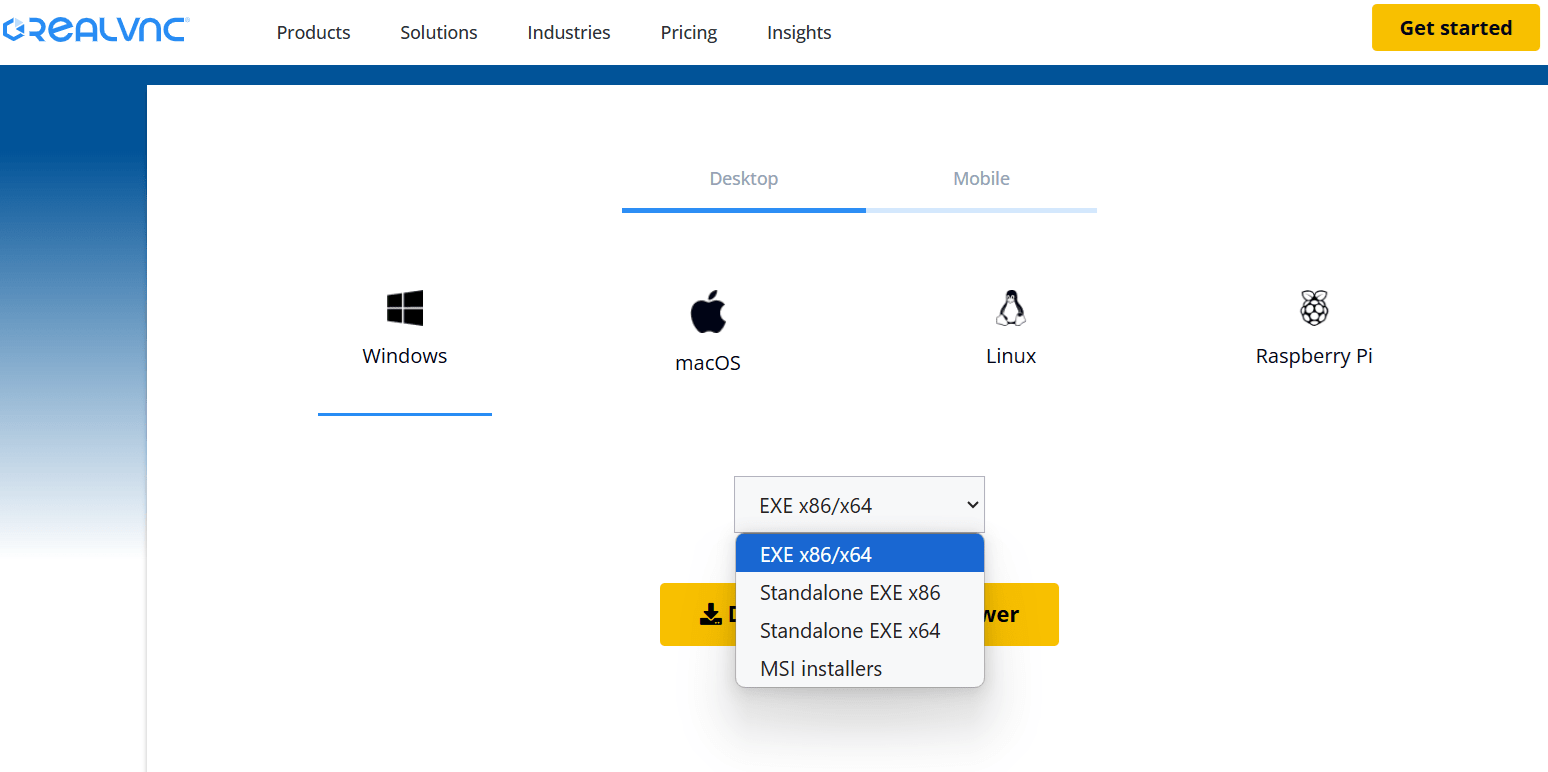
Step-by-Step: How to Connect to Your Mac Mini M1 via RealVNC
Step 1 — Download and Install RealVNC Viewer
Navigate to the official RealVNC website and download RealVNC Viewer for your operating system. Make sure you select the correct version that matches your platform (Windows, macOS, Linux, iOS, or Android).
Once downloaded, follow the standard installation process for your operating system. The installation is straightforward and requires no advanced configuration.
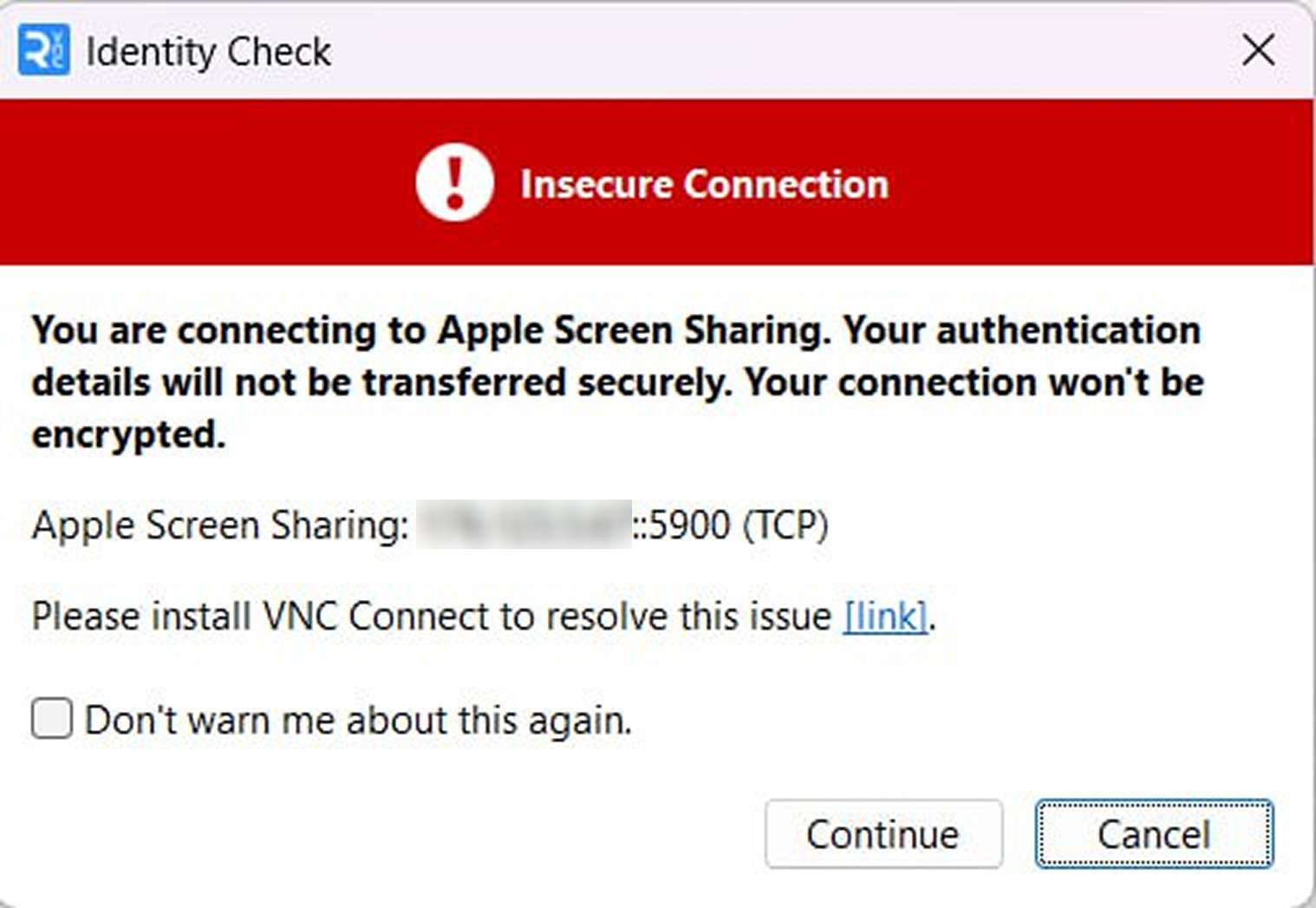
Step 2 — Open RealVNC Viewer and Enter the Server IP Address
Launch RealVNC Viewer on your device. In the connection bar at the top of the application window:
- Enter the IP address of your Mac Mini M1 server exactly as provided in your AlexHost welcome email.
- Press Enter or click the Connect button to initiate the connection.
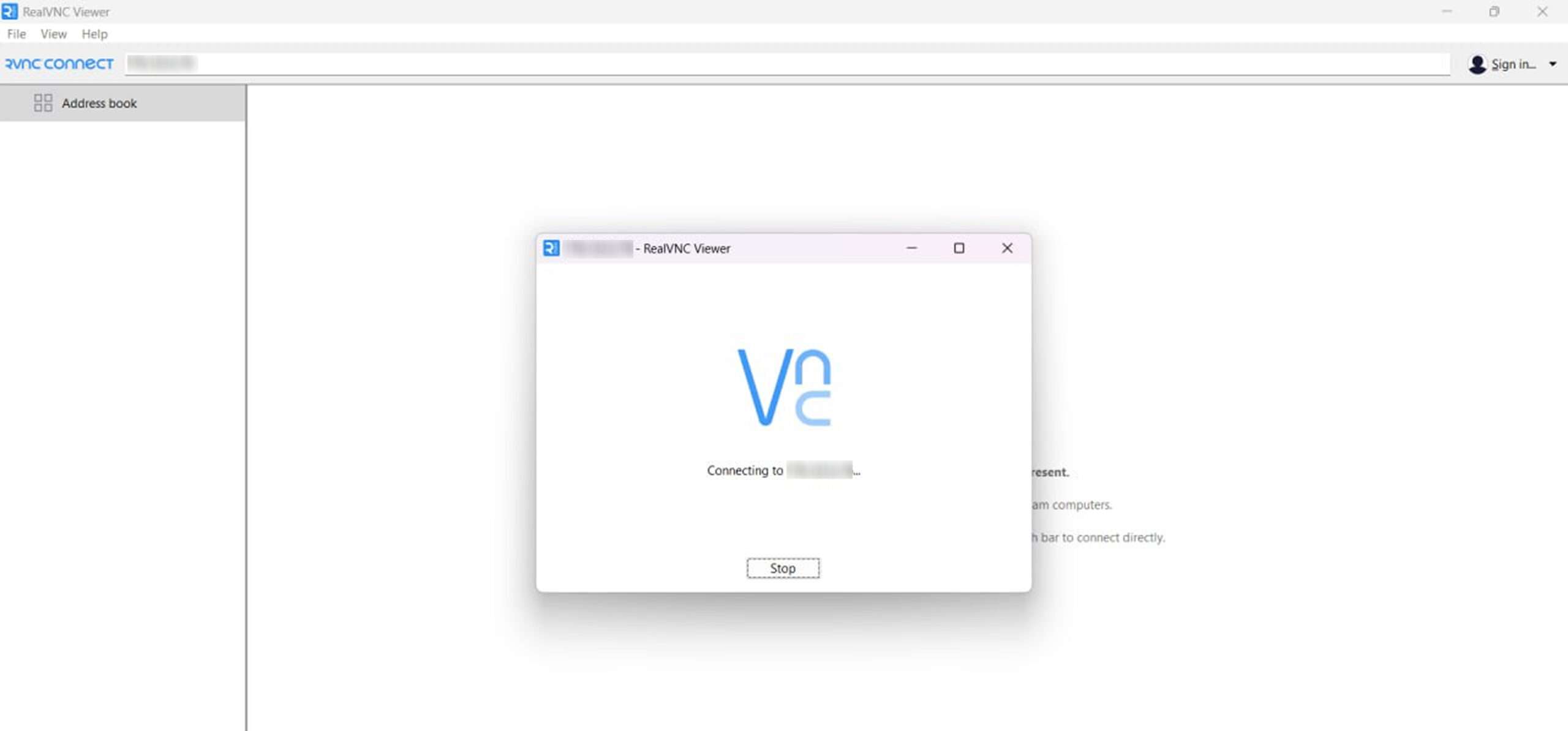
> Important: Double-check the IP address before connecting. An incorrect IP will result in a failed connection attempt.
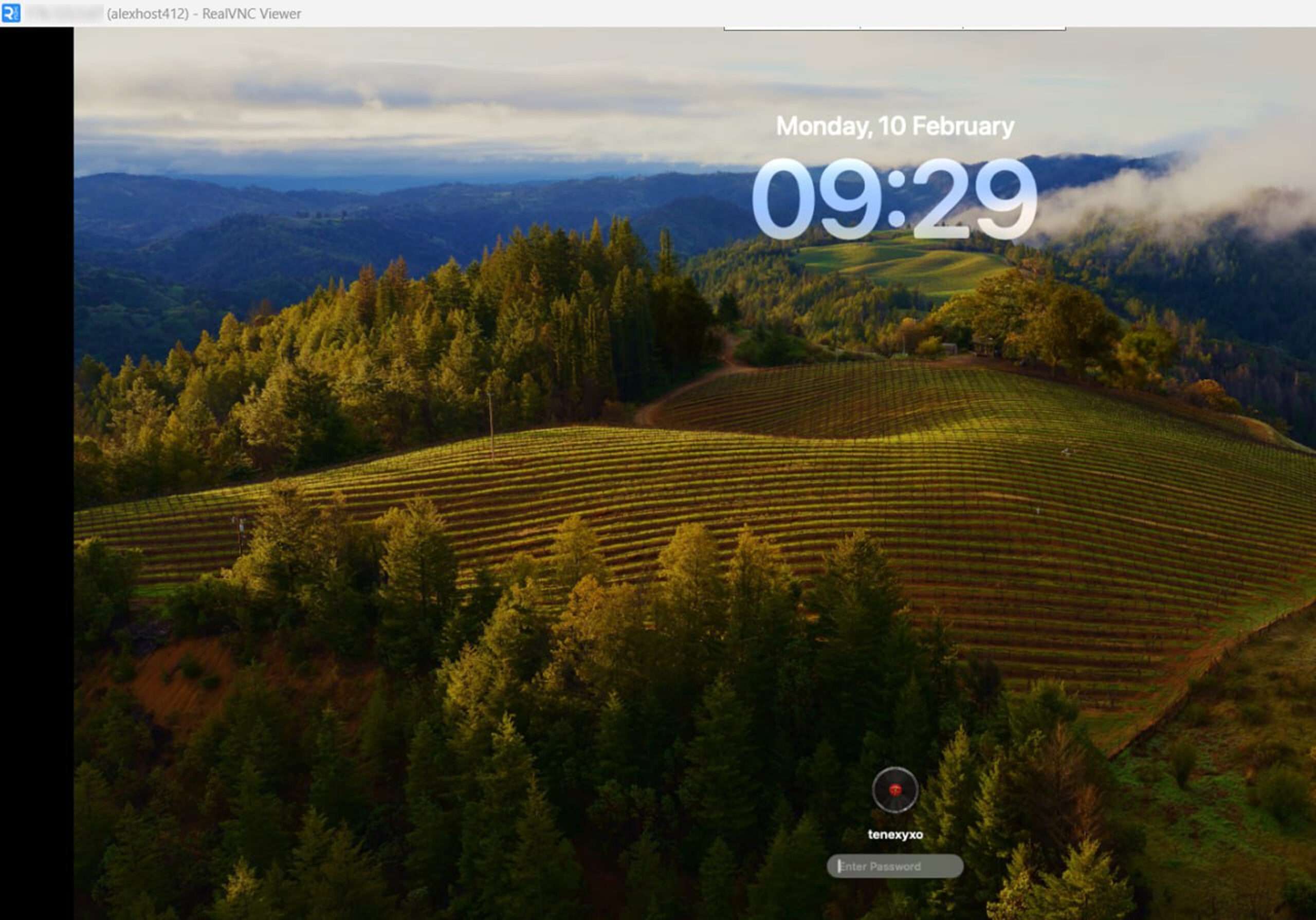
Step 3 — Authenticate with Your Credentials
After clicking Connect, RealVNC Viewer will prompt you for authentication. Enter the following details:
- Username: As provided in your AlexHost credentials email
- Password: As provided in your AlexHost credentials email
Click OK or Authenticate to proceed.
Step 4 — Approve the Connection and Access the macOS Desktop
Once your credentials are verified, you may be prompted to enter your password one additional time — this is a standard macOS security behavior for remote desktop sessions. Enter the same password you received in your credentials email.
After successful authentication, you will have full graphical access to the macOS desktop of your Mac Mini M1 server. You can now interact with it exactly as if you were sitting in front of the machine — launching applications, managing files, running development environments, and more.
Troubleshooting Common Connection Issues
If you encounter problems during the connection process, here are the most common causes and their solutions:
| Issue | Likely Cause | Solution |
|---|---|---|
| Connection refused | Incorrect IP address | Verify the IP in your AlexHost welcome email |
| Authentication failed | Wrong username or password | Re-check credentials; contact AlexHost support if needed |
| Blank or black screen | macOS display sleep | Move the mouse or press a key to wake the display |
| Slow or laggy session | Network bandwidth limitation | Close unused applications; try a wired connection |
| Cannot reach the server | Firewall blocking VNC port | Ensure port 5900 (VNC default) is open on your network |
Why the Apple Mac Mini M1 Is an Exceptional Remote Server
The Apple Mac Mini M1 isn't just a desktop computer — in the hands of a hosting provider like AlexHost, it becomes a powerful, energy-efficient remote server capable of handling demanding professional workloads. Here's what makes it stand out:
🚀 Apple M1 Chip Performance
The Apple M1 processor is built on a 5nm ARM architecture, delivering industry-leading performance-per-watt ratios. It excels at tasks like macOS application development, iOS simulator testing, machine learning inference, video encoding, and virtualization — workloads that would require significantly more power on traditional x86 hardware.
🔇 Silent, Fanless-Style Operation
Unlike rack-mounted servers that generate significant noise and heat, the Mac Mini M1 operates with an extremely quiet cooling system. This makes it ideal for environments where noise is a concern, while still maintaining thermal efficiency under sustained workloads.
📦 Compact, Space-Efficient Form Factor
The Mac Mini M1's small footprint means it can be deployed efficiently within a data center environment without consuming excessive rack space — a practical advantage that translates into cost savings for both the hosting provider and the end user.
🍎 Native macOS Environment
For developers and professionals who depend on Apple's ecosystem, there is simply no substitute for running macOS natively. The Mac Mini M1 runs the full macOS operating system, giving you access to Xcode, Final Cut Pro, Logic Pro, and the entire suite of Apple developer tools — all remotely accessible via RealVNC.
🔌 Versatile Connectivity Options
Equipped with Thunderbolt 4, USB-A, HDMI 2.0, and Gigabit Ethernet ports, the Mac Mini M1 offers flexible connectivity for a wide range of peripheral and networking configurations.
Pair Your Mac Mini M1 with AlexHost's Full Hosting Ecosystem
Your Mac Mini M1 dedicated server works even better when combined with AlexHost's broader range of hosting solutions. Consider the following to build a complete infrastructure:
- VPS Hosting — Deploy lightweight Linux or Windows VPS instances alongside your Mac Mini for mixed-OS workflows, load balancing, or staging environments.
- SSL Certificates — Secure any web applications or services you host on your Mac Mini M1 with industry-standard SSL/TLS encryption.
- Domain Registration — Register and manage your domain names directly through AlexHost for a fully integrated hosting experience.
Exclusive AlexHost Offer: Get 25% Off Your Mac Mini M1 Server
For a limited time, AlexHost is offering an exclusive 25% discount on Mac Mini M1 dedicated server rentals.
> 🎁 Promo Code: MacMini25
> Apply at checkout on the Apple M1 Dedicated Servers page.
Take advantage of this offer to experience top-tier macOS performance, enterprise-grade security, and seamless remote access — all backed by AlexHost's reliable infrastructure and expert support team.
Final Thoughts
Connecting to your Mac Mini M1 remote desktop via RealVNC is a straightforward process that takes only a few minutes to complete. With the right credentials in hand and RealVNC Viewer installed, you'll have full graphical access to a powerful, native macOS environment from anywhere in the world.
AlexHost's Mac Mini M1 dedicated servers are purpose-built for developers, creative professionals, and businesses that need the unique capabilities of Apple Silicon in a remotely accessible, always-on hosting environment.
Ready to get started? Order your Mac Mini M1 Dedicated Server today and use code MacMini25 to save 25% on your first month. 🚀