Open Ticket
  +373 79 600002
  Telegram Live Chat
  F.A.Q
F.A.Q  English
 Русский
  Română
  Deutsch
  Français
  Türkçe
  Español
  Português
  Українська
  български
  Polski
  Indonesia
  中文 (中国)






































































































































 on All Hosting Services






How to Disable the Password Prompt for the Sudo Command in Linux
The sudo command — short for superuser do — grants authorized Linux users temporary root-level privileges to execute administrative tasks. By default, every sudo invocation requires password authentication to verify the caller's identity. You can disable this password prompt either globally for a user, selectively for specific commands, or temporarily for a session by modifying the /etc/sudoers file via visudo or by adjusting the timestamp_timeout directive.
Before proceeding: disabling sudo password authentication reduces your system's defense-in-depth posture. Apply these changes only to trusted accounts, preferably scoped to specific commands rather than blanket ALL privileges. On any production VPS Hosting environment, treat passwordless sudo as a calculated trade-off, not a convenience default.

Understanding How Sudo Authentication Works
When a user runs sudo, the Linux PAM (Pluggable Authentication Modules) stack authenticates the request against the rules defined in /etc/sudoers. Upon successful authentication, the kernel records a credential timestamp in /run/sudo/ts/ (or /var/db/sudo/ on older distributions). Subsequent sudo calls within the timestamp_timeout window — 15 minutes by default — skip re-authentication entirely.
This architecture means there are two fundamentally different levers you can pull:
- Credential caching — extend or eliminate the timeout window so the user authenticates once and the credential persists longer.
- NOPASSWD directive — instruct
sudoto skip authentication entirely for specific commands or users, regardless of timing.
Understanding this distinction is critical. Extending timestamp_timeout to a large value still requires one initial authentication. The NOPASSWD directive requires zero authentication, ever. These are not equivalent from a security standpoint.
The sudoers File: Architecture and Safe Editing
The primary configuration file is /etc/sudoers. It must never be edited directly with a standard text editor. Always use visudo, which:
- Locks the file against concurrent edits
- Validates syntax before saving
- Prevents a malformed sudoers file from locking all users out of
sudo
sudo visudoOn modern Debian/Ubuntu systems, /etc/sudoers includes a drop-in directory:
/etc/sudoers.d/You can place individual rule files here instead of modifying the main file directly. This is the recommended approach for production systems — it keeps your custom rules isolated and makes auditing straightforward.
sudo visudo -f /etc/sudoers.d/custom_nopasswdFiles in /etc/sudoers.d/ must not contain a . in their name (e.g., avoid custom.conf) and must have permissions set to 0440:
sudo chmod 0440 /etc/sudoers.d/custom_nopasswdMethod 1: Temporarily Bypass the Password Prompt for a Single Session
The -S flag instructs sudo to read the password from standard input (stdin) rather than from the terminal. This is primarily useful in non-interactive scripts where you pipe the password programmatically:
echo "your_password" | sudo -S apt updateCritical caveat: Embedding plaintext passwords in scripts or shell history is a significant security risk. This method is appropriate for isolated automation pipelines where the password is injected via a secrets manager or environment variable — not hardcoded in a script file. For unattended automation on a server, the NOPASSWD directive described below is the architecturally cleaner solution.
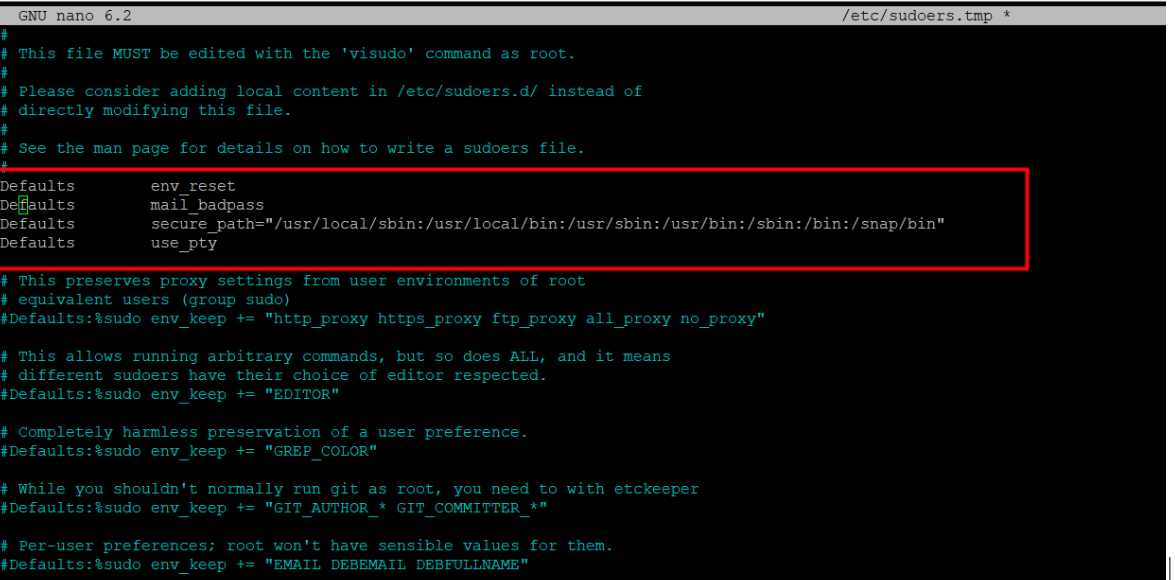
Method 2: Disable the Password Prompt for All Commands for a Specific User
This method grants a named user the ability to run any sudo command without a password. Use it sparingly — typically for dedicated service accounts or automation users, not for human operator accounts.
Step 1: Open the sudoers file:
sudo visudoStep 2: Add the following line, replacing username with the actual Linux account name:
username ALL=(ALL) NOPASSWD: ALLStep 3: Save and exit. In nano-based visudo, press Ctrl+X, then Y, then Enter. In vi-based visudo, type :wq.
What this rule means, parsed:
| Field | Value | Meaning |
|---|---|---|
username | The target user | Who the rule applies to |
ALL (first) | Any host | Rule applies on all machines (useful for shared sudoers configs) |
(ALL) | Any target user | Can run commands as any user, including root |
NOPASSWD: ALL | All commands, no password | No authentication required for any command |
Method 3: Disable the Password Prompt for Specific Commands Only
This is the most security-conscious approach when passwordless execution is genuinely required. Rather than granting blanket NOPASSWD: ALL, you scope the exemption to a precise binary path.
Step 1: Open the sudoers file:
sudo visudoStep 2: Locate the Defaults section and add a targeted rule below it:
username ALL=(ALL) NOPASSWD: /usr/bin/systemctl restart nginx, /usr/bin/apt-get updateReplace username with the actual account and specify the full, absolute path to each command. You can comma-separate multiple commands on a single line.
Step 3: Save and exit.
Why absolute paths matter: sudo resolves commands against the sudoers rules using the full binary path. If you specify apt-get without a path, the rule may not match, or worse, a malicious binary placed earlier in $PATH could be invoked instead. Always verify paths with which:
which systemctl
# /usr/bin/systemctl
Real-world use case: A deployment pipeline running as a deploy user needs to restart application services after each release. Granting NOPASSWD only for systemctl restart myapp means the pipeline can function autonomously without exposing full root access.
Method 4: Extend the Credential Timestamp Timeout
Rather than eliminating authentication entirely, you can extend how long sudo remembers a successful authentication. This is the least-invasive option for interactive users who run multiple administrative commands in a single work session.
Step 1: Open the sudoers file:
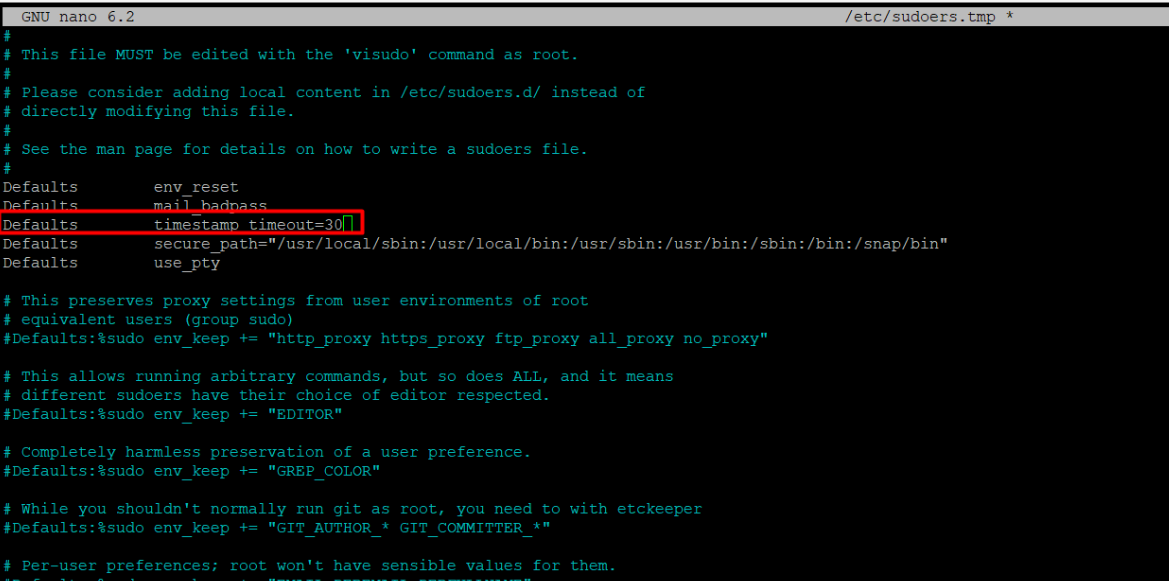
sudo visudoStep 2: Modify or add the timestamp_timeout directive under the Defaults block:
Defaults timestamp_timeout=60This sets the credential cache to 60 minutes. The user authenticates once, and subsequent sudo commands within that window require no password.
Special values:
| Value | Behavior |
|---|---|
0 | Password required on every single sudo invocation |
-1 | Credential never expires (effectively passwordless after first auth) |
15 | Default on most distributions |
60 | Reasonable for active admin sessions |
Step 3: Save and exit.
To apply a timeout override for a specific user only rather than system-wide:
Defaults:username timestamp_timeout=60Method 5: Using a sudoers Drop-in File (Production Best Practice)
Rather than editing /etc/sudoers directly, create a scoped drop-in file. This approach is idempotent, auditable, and safe to manage via configuration management tools like Ansible, Puppet, or Chef.
sudo visudo -f /etc/sudoers.d/deploy_nopasswdInside the file:
# Allow the deploy user to restart services without a password
deploy ALL=(ALL) NOPASSWD: /usr/bin/systemctl restart nginx
deploy ALL=(ALL) NOPASSWD: /usr/bin/systemctl restart myapp
Set correct permissions:
sudo chmod 0440 /etc/sudoers.d/deploy_nopasswdVerify the sudoers configuration is valid across all files:
sudo visudo -c
# sudoers file: /etc/sudoers, parsed OK
# sudoers file: /etc/sudoers.d/deploy_nopasswd, parsed OK
Comparison of All Methods
| Method | Scope | Requires Initial Auth | Security Risk | Best Use Case |
|---|---|---|---|---|
sudo -S with stdin | Single command | Yes (piped) | High if hardcoded | CI/CD with secrets manager |
NOPASSWD: ALL | All commands, one user | No | Very High | Isolated automation accounts |
NOPASSWD: /path/cmd | Specific commands only | No | Low-Medium | Deployment pipelines, scripts |
timestamp_timeout extension | All commands, time-limited | Yes (once) | Low | Interactive admin sessions |
Drop-in /etc/sudoers.d/ file | Configurable | Configurable | Depends on rule | Production, IaC-managed servers |
Security Hardening Considerations
Disabling sudo password prompts introduces real attack surface. Apply these mitigations:
- Audit sudo usage: Enable sudo logging by adding
Defaults logfile="/var/log/sudo.log"to your sudoers configuration. Review this log regularly. - Restrict by command and argument:
NOPASSWD: /usr/bin/systemctl restart nginxis far safer thanNOPASSWD: /usr/bin/systemctl— the latter allows the user to stop, disable, or mask any service. - Use dedicated service accounts: Never apply
NOPASSWD: ALLto a human operator's primary account. Create a purpose-specific account (e.g.,deploy,monitor) with a minimal command whitelist. - Combine with SSH key-only authentication: If passwordless sudo is configured on a server, ensure that SSH access itself requires key-based authentication. Disabling both SSH passwords and sudo passwords simultaneously on a publicly accessible server is a critical misconfiguration.
- Rotate and review: Periodically audit
/etc/sudoers.d/for stale rules tied to decommissioned accounts or deprecated scripts.
On Dedicated Servers where you have full hardware control, these configurations carry even more weight — a compromised account with passwordless sudo on a dedicated machine means full, uncontested root access with no hypervisor-level containment.
Verifying Your Configuration
After making changes, always test the rule as the target user without switching to root:
# Switch to the target user
su - username

# Test a specific command
sudo /usr/bin/systemctl restart nginx

# Verify sudo privileges without executing a command
sudo -l
sudo -l lists all commands the current user is permitted to run, including which ones are NOPASSWD. This is your primary debugging tool when a rule is not behaving as expected.
To check the effective sudoers rules for a specific user from a root session:
sudo -l -U usernamePractical Configuration for a Web Server Deployment Pipeline
The following is a complete, production-ready configuration for a deployment user on a web server — the kind of setup you would use on a VPS with cPanel or a custom LEMP/LAMP stack:
1. Create the deployment user:
sudo useradd -m -s /bin/bash deploy
sudo passwd deploy
2. Create the sudoers drop-in rule:
sudo visudo -f /etc/sudoers.d/deploy# Deployment pipeline: passwordless service management only
deploy ALL=(ALL) NOPASSWD: /usr/bin/systemctl restart nginx
deploy ALL=(ALL) NOPASSWD: /usr/bin/systemctl restart php8.2-fpm
deploy ALL=(ALL) NOPASSWD: /usr/bin/systemctl reload nginx
deploy ALL=(ALL) NOPASSWD: /usr/bin/chown -R www-data /var/www/html3. Set permissions and validate:
sudo chmod 0440 /etc/sudoers.d/deploy
sudo visudo -c
4. Test as the deploy user:
su - deploy
sudo systemctl restart nginx
# Should execute without a password prompt
This pattern is directly applicable to any automated deployment workflow, whether you are using GitHub Actions, GitLab CI, Jenkins, or a custom shell script triggered over SSH.
If your infrastructure includes managed VPS Control Panels, verify that the panel's own system user (e.g., cpanel, plesk) is not inadvertently affected by broad NOPASSWD: ALL rules you add to sudoers.
Key Takeaway Checklist
Before applying any passwordless sudo configuration, run through this decision matrix:
- Is this a human account or a service account? Service accounts can tolerate
NOPASSWD; human accounts should usetimestamp_timeoutextension instead. - Can you scope the exemption to specific commands? Always prefer
NOPASSWD: /path/to/commandoverNOPASSWD: ALL. - Is SSH access secured with key-based authentication? If not, fix that first before loosening sudo requirements.
- Is sudo activity being logged? Add
Defaults logfile="/var/log/sudo.log"if not already present. - Are you using drop-in files in
/etc/sudoers.d/? Prefer this over editing/etc/sudoersdirectly for maintainability. - Have you run
sudo visudo -cto validate syntax? Never skip this step — a syntax error in sudoers can lock you out of administrative access entirely. - Do you have an out-of-band recovery method? On cloud VPS instances, ensure you have console access or a recovery snapshot before making sudoers changes.
FAQ
What is the safest way to allow passwordless sudo for a specific script?
Create a wrapper script with a fixed absolute path, place it in a system directory (e.g., /usr/local/bin/deploy-restart.sh), and grant NOPASSWD only for that specific path in /etc/sudoers.d/. This prevents argument injection and limits the blast radius if the account is compromised.
Will disabling the sudo password prompt affect all terminal sessions immediately?
Yes. Changes to /etc/sudoers or files in /etc/sudoers.d/ take effect immediately for all new sudo invocations. There is no need to restart any service or log out. Existing cached credentials are unaffected until they expire.
What happens if I make a syntax error in the sudoers file?
If you used visudo, it will catch the error before saving and prompt you to correct it. If you somehow bypassed visudo and introduced a syntax error, sudo will refuse to run entirely. Recovery requires booting into single-user mode or using out-of-band console access to correct the file.
Can I apply NOPASSWD to a group instead of an individual user?
Yes. Use the %groupname syntax: %developers ALL=(ALL) NOPASSWD: /usr/bin/systemctl restart nginx. This applies the rule to all members of the developers group, making it easier to manage access at scale without editing sudoers for each new team member.
Does timestamp_timeout=-1 behave the same as NOPASSWD: ALL?
No. timestamp_timeout=-1 means the credential never expires after the first successful authentication — but that first authentication still requires a password. NOPASSWD: ALL skips authentication entirely, including the very first invocation. The former is significantly safer for interactive users.