Open Ticket
  +373 79 600002
  Telegram Live Chat
  F.A.Q
F.A.Q  English
 Русский
  Română
  Deutsch
  Français
  Türkçe
  Español
  Português
  Українська
  български
  Polski
  Indonesia
  中文 (中国)






































































































































 on All Hosting Services






How to Terminate a Process in Linux
Managing processes efficiently is vital for maintaining optimal performance on a virtual server, such as those offered by AlexHost. In Linux, terminating processes is essential for optimizing system resources, resolving issues, and maintaining server stability. This guide provides a comprehensive overview of methods to end processes in Linux, offering detailed insights for both beginners and seasoned system administrators.

Understanding Processes in Linux
A process in Linux is an active instance of a program. Each time you execute a command or application, it generates a process that utilizes system resources like CPU and memory. On virtual servers, such as those provided by AlexHost, efficient resource management is crucial, especially when hosting multiple websites or applications. If a process behaves erratically or consumes excessive resources, terminating it can help maintain optimal server performance.
Why Terminate a Process?
There are several reasons to terminate a process on your AlexHost virtual server:
- High CPU or Memory Usage: Processes consuming excessive resources can slow down or crash other applications.
- Unresponsive Programs: Some applications may freeze or enter an infinite loop, requiring termination.
- Debugging and Development: During software development, terminating processes is necessary for testing and troubleshooting.
- Resource Optimization: On a virtual server, ending unnecessary processes ensures efficient use of allocated resources.
Listing Processes in Linux
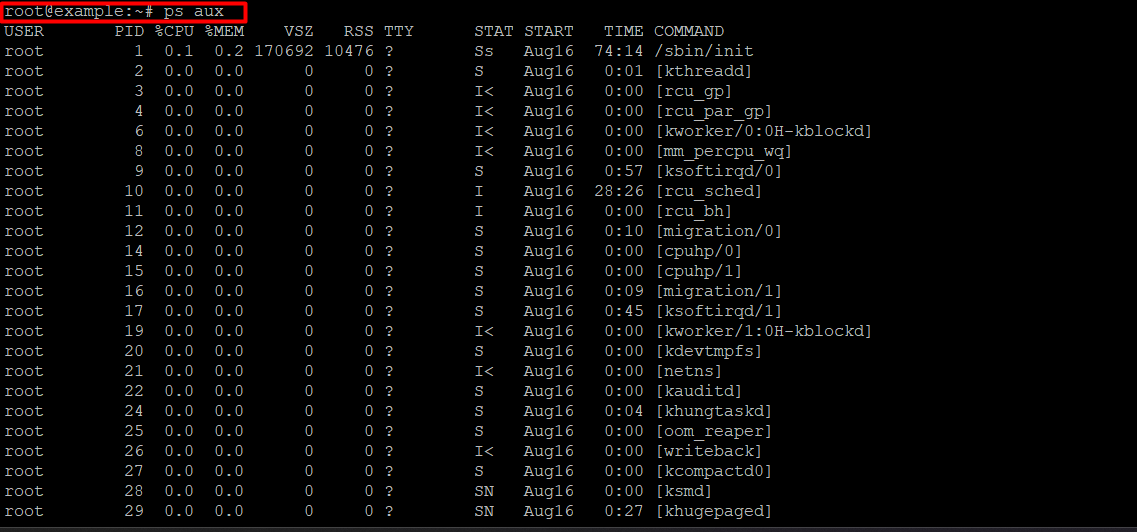
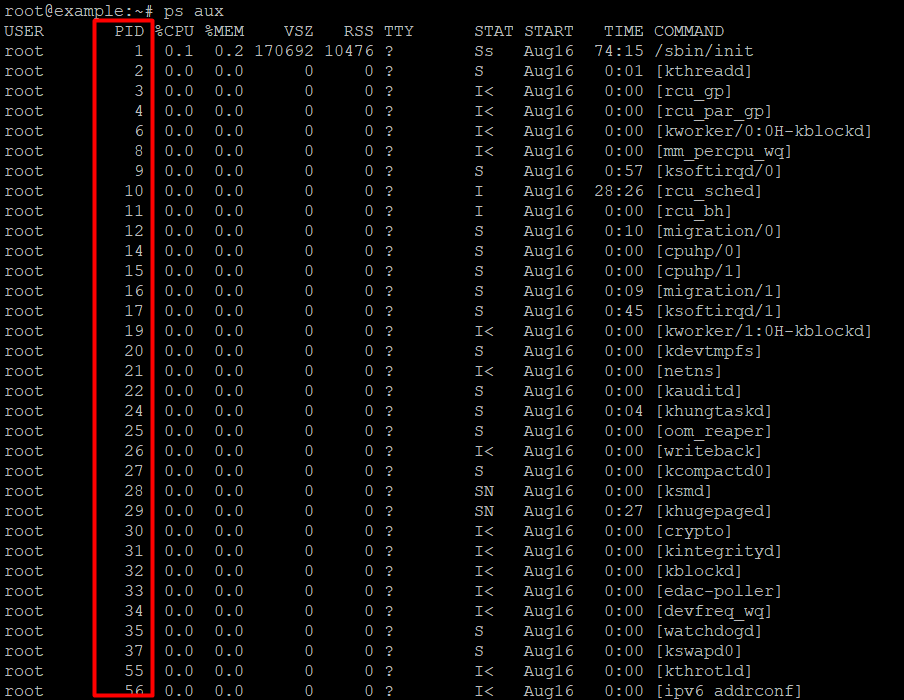
To terminate a process, you must first identify its Process ID (PID). Use the following commands to list running processes:
- `ps aux`: Displays all running processes with their PIDs, user ownership, and resource usage.
- `top` and `htop`: These tools provide real-time information about running processes and allow direct termination from the interface.
Example Command
“`bash
ps aux | grep process_name
“`
This command helps you find the PID of a specific process by filtering the output with `grep`.
Methods to Terminate a Process in Linux
Once you have identified the PID, you can use various commands to terminate it.
The `kill` Command
The `kill` command is commonly used to terminate processes in Linux. It sends a signal to the process, defaulting to the TERM signal for graceful termination.
Syntax
“`bash
kill PID
“`
Example
“`bash
kill 1234
“`
The `pkill` Command
`pkill` is a powerful command used in Unix-based systems to terminate processes. It offers advanced functionality like pattern matching and flexibility in identifying processes.
How `pkill` Works
“`bash
pkill process_name
“`
This command sends a SIGTERM signal to all processes matching the given pattern. For instance, to stop all instances of Firefox:
“`bash
pkill firefox
“`
Advanced Features of `pkill`
- Pattern Matching: Supports extended regex patterns. Use `-f` to match against the full command line.
“`bash
pkill -f fire
“`
- Matching by Attributes: Terminate processes based on attributes like user, PID, or session ID.
- By User: `pkill -u username`
- By PID: `pkill -P pid_number`
- By Group: `pkill -G group_name`
- Signal Handling: Change the default signal with `-SIGNAL`. Use `-9` for a SIGKILL signal, which forcefully stops processes.
“`bash
pkill -9 process_name
“`
- Dry Run: Use `-l` to list processes that match the pattern without terminating them.
“`bash
pkill -l process_name
“`
Practical Takeaways for Process Management
- Identify Critical Processes: Always ensure you correctly identify processes to avoid accidental termination of essential services.
- Use `htop` for Interactive Management: `htop` provides an interactive interface to manage processes effectively.
- Understand Signals: Familiarize yourself with different signals to choose the appropriate one for each situation.
- Automate Routine Tasks: Use scripts to automate process management tasks for efficiency.
FAQ
1. What is the difference between `kill` and `pkill`?
`kill` terminates a process by its PID, while `pkill` can terminate processes based on name patterns, offering more flexibility.
2. How can I safely terminate a process without affecting system stability?
Use `kill` with the default SIGTERM signal to allow processes to terminate gracefully. Reserve SIGKILL for unresponsive processes.
3. Can I terminate processes owned by other users?
Yes, but you need superuser privileges to terminate processes owned by other users.
4. What should I do if a process does not terminate with `kill`?
Try using `pkill -9` for a forceful termination or investigate potential system issues that may prevent the process from ending.
5. How can I prevent accidental termination of critical processes?
Maintain a list of essential services and double-check PIDs before executing termination commands. Use logging to track process management activities.