Open Ticket
  +373 79 600002
  Telegram Live Chat
  F.A.Q
F.A.Q  English
 Русский
  Română
  Deutsch
  Français
  Türkçe
  Español
  Português
  Українська
  български
  Polski
  Indonesia
  中文 (中国)






































































































































 on All Hosting Services






Updating the Linux Kernel: A Complete Distribution-by-Distribution Guide
The Linux kernel is the foundational layer between your hardware and every process running on your system. It manages CPU scheduling, memory allocation, device drivers, system calls, and security enforcement. Keeping it current is not optional for production systems — outdated kernels expose servers to privilege escalation exploits, memory corruption vulnerabilities, and performance regressions that newer versions resolve.
This guide provides exhaustive, technically precise instructions for updating the Linux kernel across Ubuntu, Debian, CentOS, RHEL, and Arch Linux — including bootloader configuration, initramfs regeneration, version pinning, and rollback procedures that most guides omit entirely.
Why Kernel Updates Are a Critical Maintenance Task
Every kernel release addresses a combination of security patches (CVEs), hardware compatibility improvements, scheduler optimizations, and new filesystem or networking capabilities. The consequences of running a stale kernel include:
- Unpatched CVEs: Vulnerabilities like Dirty COW (CVE-2016-5195), Spectre/Meltdown mitigations, and more recent privilege escalation bugs are kernel-level issues that no application-layer security tool can fully compensate for.
- Performance degradation: Older kernels lack improvements to the CFS scheduler, memory compaction, and NVMe queue depth handling that directly affect server throughput.
- Driver incompatibility: New hardware, including modern NVMe controllers and network adapters, may require kernel versions that expose updated driver interfaces.
- Missing system call support: Containerization runtimes (Docker, Podman, containerd) and security frameworks (eBPF, seccomp) depend on kernel features introduced in specific versions.
On a VPS Hosting environment, the kernel also governs how efficiently the guest OS interacts with the hypervisor — meaning a current kernel with up-to-date virtio drivers and paravirtualization support translates directly into lower latency and better I/O throughput.

Before You Begin: Pre-Update Checklist
Regardless of distribution, execute these steps before touching the kernel:
- Snapshot or backup your system. If your provider supports snapshots, take one now. On bare metal, ensure your backup is current.
- Check your current kernel version:
uname -r - Verify available disk space in /boot:
df -h /boot— a full /boot partition will silently fail kernel installations on Debian-based systems. - Confirm your bootloader:
ls /boot | grep -E 'grub|efi'— knowing whether you use GRUB2, systemd-boot, or GRUB legacy changes the post-install steps. - Check for held or pinned packages: On Debian/Ubuntu, run
apt-mark showhold. On RHEL/CentOS, check/etc/yum.confforexclude=kernel*. - Have console access ready. If the new kernel fails to boot, SSH will be unavailable. Ensure you have out-of-band access (VNC, IPMI, or your provider's emergency console) before rebooting.
Updating the Kernel on Ubuntu and Debian
Ubuntu and Debian use the APT package manager and ship kernel images as standard packages under the linux-image-* naming convention. The kernel, its modules, and the initramfs are all managed through this system, making updates relatively straightforward — but there are important nuances.
Step 1: Synchronize Package Repositories
sudo apt updateThis refreshes the local package index against all configured repositories. Do not skip this step — running apt upgrade without a prior apt update may install outdated package versions.
Step 2: Apply Full System Upgrade
sudo apt upgradeThis upgrades installed packages but will not install a new kernel if it requires removing existing packages. For kernel transitions (e.g., moving from 5.15 to 6.1), use:
sudo apt full-upgradeThe older dist-upgrade command is functionally equivalent to full-upgrade and remains available, but full-upgrade is the current canonical form.
Step 3: Install the Kernel Metapackage
sudo apt install linux-image-generic linux-headers-genericThe metapackage (linux-image-generic) always tracks the latest recommended kernel for your architecture. Installing it explicitly ensures the package manager knows you want kernel updates going forward. The linux-headers-generic package is required if you compile external kernel modules (e.g., DKMS-managed drivers like ZFS or proprietary GPU drivers).
For Ubuntu systems, you can also install HWE (Hardware Enablement) kernels, which backport newer kernels to LTS releases:
sudo apt install linux-generic-hwe-22.04Step 4: Verify the New Kernel Is Staged
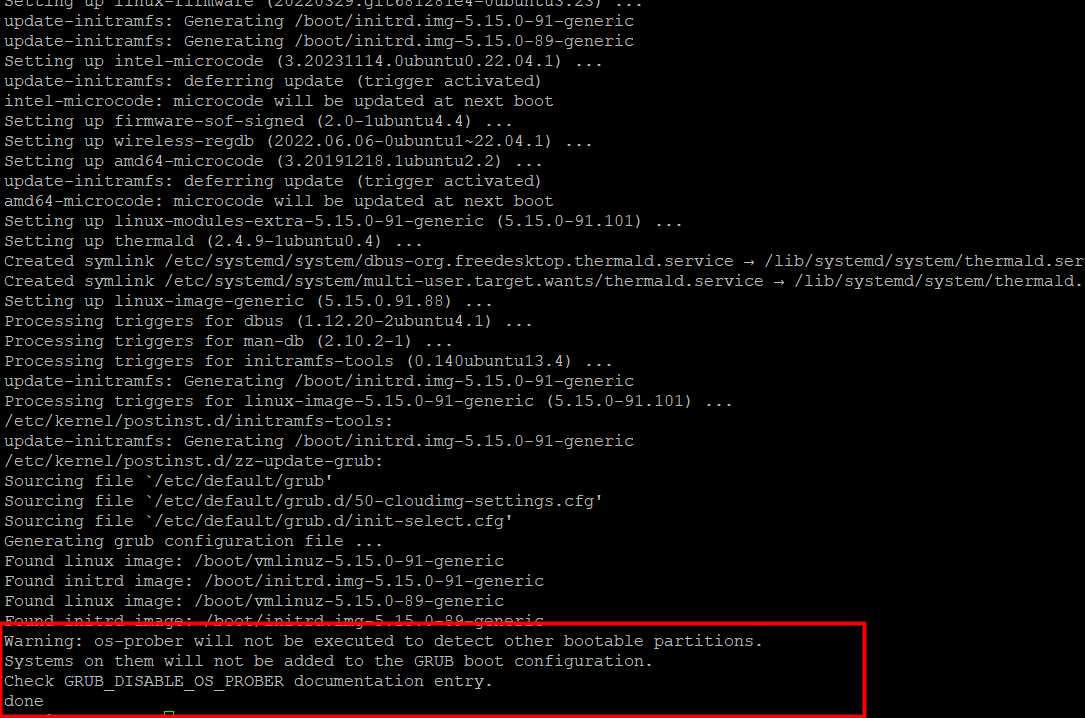
dpkg --list | grep linux-imageYou should see the new kernel version listed with ii status (installed). The old kernel remains installed as a fallback — this is intentional.
Step 5: Reboot and Confirm
sudo rebootAfter reconnecting:
uname -rConfirm the output reflects the new kernel version.
Cleaning Up Old Kernels on Debian/Ubuntu
Old kernels accumulate in /boot and consume disk space. Remove them safely with:
sudo apt autoremove --purgeAPT automatically identifies superseded kernel packages and removes them, but only if they are not the currently running kernel or the most recent fallback.
Critical pitfall: Never manually remove the currently running kernel package. Always reboot into the new kernel first, then run autoremove.
Updating the Kernel on CentOS and RHEL
CentOS and RHEL use RPM-based package management — either yum (CentOS 7, RHEL 7) or dnf (CentOS 8+, RHEL 8+, AlmaLinux, Rocky Linux). The kernel update process differs from Debian-based systems in one important respect: RPM systems keep multiple kernel versions installed simultaneously by default, controlled by the installonly_limit directive in /etc/yum.conf or /etc/dnf/dnf.conf.
Step 1: Update All Packages Including the Kernel
# CentOS 7 / RHEL 7
sudo yum update

# CentOS 8+ / RHEL 8+ / AlmaLinux / Rocky Linux
sudo dnf update
This single command handles the kernel update in most cases. Unlike Debian, there is no separate dist-upgrade equivalent — yum update / dnf update handles dependency resolution for kernel transitions automatically.
Step 2: Install a Specific Kernel Version (Optional)
If you need a specific kernel version rather than the latest available:
sudo yum install kernel-<version>
# Example:
sudo yum install kernel-5.14.0-284.30.1.el9_2
Step 3: Regenerate GRUB2 Configuration
On RHEL/CentOS systems, the bootloader configuration must be explicitly regenerated to include the new kernel entry. The correct command depends on whether your system uses BIOS or UEFI:
BIOS-based systems:
sudo grub2-mkconfig -o /boot/grub2/grub.cfgUEFI-based systems:
sudo grub2-mkconfig -o /boot/efi/EFI/redhat/grub.cfg
# or for CentOS/AlmaLinux/Rocky:
sudo grub2-mkconfig -o /boot/efi/EFI/centos/grub.cfg
Important: On RHEL 8+ and derivatives, the grub2-mkconfig step is often handled automatically by the kernel-core package scriptlets via grubby. You can verify the default boot entry with:
sudo grubby --default-kernelTo manually set the default kernel:
sudo grubby --set-default /boot/vmlinuz-<new-version>Step 4: Reboot and Verify
sudo reboot
uname -r
Managing Kernel Retention on RHEL/CentOS
By default, installonly_limit=3 in /etc/dnf/dnf.conf keeps the three most recent kernels. Adjust this value if disk space in /boot is constrained:
sudo sed -i 's/installonly_limit=3/installonly_limit=2/' /etc/dnf/dnf.confTo list all installed kernels:
rpm -q kernelUpdating the Kernel on Arch Linux
Arch Linux follows a rolling release model, meaning the kernel is updated continuously as new upstream versions are released. There are no discrete release versions — the system is always moving toward the latest stable kernel. This makes Arch ideal for developers who need cutting-edge kernel features, but it requires more attentive maintenance.
Step 1: Full System Synchronization and Upgrade
sudo pacman -SyuThe -S flag synchronizes packages, -y refreshes the database, and -u upgrades all installed packages. On Arch, you should always perform a full system upgrade rather than upgrading individual packages in isolation — partial upgrades are explicitly unsupported and can cause library dependency breakage.
Step 2: Install or Reinstall the Kernel Package
If the kernel was not updated by pacman -Syu (e.g., you are switching kernel variants), install it explicitly:
sudo pacman -S linux linux-headersArch Linux offers multiple official kernel variants:
| Kernel Package | Description |
|---|---|
linux | Stable kernel, latest upstream release |
linux-lts | Long-term support kernel, conservative updates |
linux-hardened | Security-hardened kernel with additional patches |
linux-zen | Optimized for desktop/interactive workloads |
For server environments, linux-lts is generally preferable — it provides a stable ABI for DKMS modules and reduces the frequency of reboots required by kernel updates.
Step 3: Regenerate the initramfs
sudo mkinitcpio -p linuxThis regenerates the initial RAM filesystem using the preset defined in /etc/mkinitcpio.d/linux.preset. The initramfs contains the minimal environment needed to mount the root filesystem before the full OS takes over. Skipping this step after a kernel update can result in a system that fails to boot if the root filesystem requires a module (e.g., ext4, btrfs, or an encrypted volume via dm-crypt).
If you installed linux-lts, use the corresponding preset:
sudo mkinitcpio -p linux-ltsStep 4: Update the GRUB Bootloader Configuration
sudo grub-mkconfig -o /boot/grub/grub.cfgNote that on Arch, the command is grub-mkconfig (without the 2 suffix), unlike RHEL/CentOS. If you use systemd-boot instead of GRUB (common on UEFI Arch installations), update the boot entry manually or run:
sudo bootctl updateStep 5: Reboot
sudo reboot
uname -r
Distribution Comparison: Kernel Update Mechanisms
| Feature | Ubuntu/Debian | CentOS/RHEL | Arch Linux |
|---|---|---|---|
| Package manager | APT (apt) | YUM / DNF | Pacman |
| Release model | Fixed releases (LTS/standard) | Fixed releases (major versions) | Rolling release |
| Kernel metapackage | linux-image-generic | kernel | linux, linux-lts |
| Bootloader update required | Automatic (via postinst scripts) | Manual (grub2-mkconfig or grubby) | Manual (grub-mkconfig) |
| initramfs regeneration | Automatic (update-initramfs) | Automatic (via dracut) | Manual (mkinitcpio) |
| Multiple kernels retained | Yes (autoremove cleans old ones) | Yes (controlled by installonly_limit) | Yes (all installed variants kept) |
| LTS kernel option | Yes (HWE stack) | Yes (EUS channels on RHEL) | Yes (linux-lts package) |
| Rollback mechanism | GRUB menu at boot | GRUB menu at boot | GRUB menu at boot |
Kernel Rollback: What to Do When a New Kernel Breaks Your System
A kernel update that causes boot failures or hardware incompatibility is a real operational risk. Here is the recovery procedure:
Step 1: Access the GRUB menu at boot. If GRUB is hidden (common on VPS environments), hold or repeatedly press Shift (BIOS) or Esc (UEFI) during boot, or configure GRUB_TIMEOUT in /etc/default/grub to a non-zero value before updating.
Step 2: Select "Advanced options" and choose the previous kernel version from the list.
Step 3: Once booted into the working kernel, either:
- Pin the working kernel to prevent its removal (Debian/Ubuntu:
sudo apt-mark hold linux-image-<version>) - Set it as the default boot entry (RHEL:
sudo grubby --set-default /boot/vmlinuz-<version>) - Remove the problematic kernel (Arch:
sudo pacman -R linuxfollowed by reinstalling the LTS variant)
Step 4: File a bug report with your distribution's kernel team or check upstream kernel bug trackers before re-attempting the update.
Kernel Updates in Containerized and Virtualized Environments
On a VPS Hosting environment, the kernel update process has an additional consideration: you are updating the guest kernel, not the host hypervisor kernel. This is standard and expected — the guest OS runs its own kernel in a paravirtualized or fully virtualized context.
However, on container-based VPS platforms (OpenVZ, LXC without kernel namespacing), the guest may share the host kernel. In these cases, uname -r reflects the host kernel version, and attempting to install a new kernel package inside the container will not change the running kernel — though the package installation itself is harmless.
On KVM-based VPS infrastructure (which is the standard for modern providers), you have full kernel control. Ensure your updated kernel includes the virtio drivers compiled in or available as modules — specifically virtio_net, virtio_blk, and virtio_scsi — to maintain network and storage connectivity after reboot.
For workloads requiring maximum raw I/O performance — such as database servers or ML inference pipelines — consider pairing kernel updates with a Dedicated Servers environment where you have full hardware control and no hypervisor overhead.
Advanced: Installing Mainline or Custom Kernels
For users who need kernel features not yet backported to their distribution's stable kernel, mainline kernels can be installed from source or via distribution-specific tools.
Ubuntu Mainline Kernel Installer:
# Using the mainline tool (third-party PPA)
sudo add-apt-repository ppa:cappelikan/ppa
sudo apt update
sudo apt install mainline
mainline install-latest
Compiling from source (all distributions):
# Download from kernel.org
wget https://cdn.kernel.org/pub/linux/kernel/v6.x/linux-6.x.y.tar.xz
tar -xf linux-6.x.y.tar.xz
cd linux-6.x.y
cp /boot/config-$(uname -r) .config
make olddefconfig
make -j$(nproc)
sudo make modules_install
sudo make install
Compiling from source gives you precise control over kernel configuration — enabling or disabling specific subsystems, applying custom patches, or enabling experimental features. This is particularly relevant for GPU Hosting workloads where custom kernel parameters for NVIDIA driver compatibility or IOMMU configuration may be required.
Automating Kernel Updates Safely
Unattended kernel updates are a double-edged capability. They reduce the window of exposure to known CVEs but introduce the risk of an unattended reboot into a broken kernel state.
Ubuntu/Debian — unattended-upgrades:
sudo apt install unattended-upgrades
sudo dpkg-reconfigure unattended-upgrades
Edit /etc/apt/apt.conf.d/50unattended-upgrades to include or exclude kernel packages:
Unattended-Upgrade::Package-Blacklist {
    // "linux-image";  // Uncomment to exclude kernel updates
};
RHEL/CentOS — dnf-automatic:
sudo dnf install dnf-automatic
sudo systemctl enable --now dnf-automatic.timer
Configure /etc/dnf/automatic.conf to set apply_updates = yes only after validating your rollback strategy.
Best practice for production: Apply kernel security updates automatically, but gate reboots through a maintenance window using tools like needrestart or kured (Kubernetes Reboot Daemon for containerized workloads).
Decision Matrix and Key Takeaways
Use this checklist before and after every kernel update:
- Snapshot or backup completed before starting
- Current kernel version documented (
uname -r) /bootpartition has sufficient free space (df -h /boot)- Console/out-of-band access confirmed and tested
- GRUB timeout set to a non-zero value to allow recovery boot
- New kernel installed and verified in package manager
- initramfs regenerated (critical on Arch; verify on all distributions)
- GRUB configuration regenerated where required (RHEL, Arch)
- System rebooted and new kernel version confirmed (
uname -r) - Old kernel packages cleaned up after confirming stability
- Kernel version documented in change log or monitoring system
- For DKMS modules (ZFS, proprietary drivers): modules rebuilt and verified
When to use LTS kernels vs. latest stable:
- Production database servers, web servers, email infrastructure: Use LTS kernels. Stability and a predictable ABI for kernel modules outweigh access to the newest features. If you run Email Hosting or Shared Web Hosting stacks, LTS is the correct choice.
- Development environments, GPU compute nodes, edge networking: Use the latest stable kernel to access new eBPF capabilities, updated scheduler algorithms, and current hardware support.
- Security-critical environments: Consider
linux-hardened(Arch) or RHEL with kernel live patching (kpatch) to apply CVE fixes without rebooting.
For environments where SSL/TLS termination and certificate management are part of the stack, keep in mind that kernel-level TLS (ktls) support — available in kernels 4.13+ — can offload TLS record encryption to the kernel, reducing CPU overhead. Pair this with properly managed SSL Certificates for a complete security posture.
FAQ
Q: Will updating the kernel break my running applications?
A: The kernel update itself does not affect running processes — they continue using the old kernel until reboot. After rebooting into the new kernel, applications that depend on kernel modules compiled against the old version (e.g., DKMS modules like ZFS or VirtualBox) may fail to load. Always verify DKMS module status with dkms status before rebooting.
Q: How do I check which kernel version is available before installing it?
A: On Debian/Ubuntu: apt-cache show linux-image-generic | grep Version. On RHEL/CentOS: dnf info kernel. On Arch: pacman -Si linux | grep Version. This lets you assess the update before committing.
Q: Can I update the kernel on a VPS without console access?
A: Technically yes, but it is strongly inadvisable. If the new kernel fails to boot, you will lose SSH access with no recovery path. Always confirm that your VPS provider offers an emergency console (VNC or serial) before performing kernel updates remotely.
Q: What is the difference between apt upgrade and apt full-upgrade for kernel updates?
A: apt upgrade will not install a new kernel if doing so requires removing any currently installed package. apt full-upgrade (formerly dist-upgrade) resolves these conflicts by allowing package removal as needed — this is typically required when transitioning between major kernel versions on Debian/Ubuntu.
Q: How do I prevent a specific kernel version from being automatically updated?
A: On Debian/Ubuntu, use sudo apt-mark hold linux-image-<version>. On RHEL/CentOS, add exclude=kernel-<version> to /etc/dnf/dnf.conf or use dnf versionlock add kernel-<version> after installing the python3-dnf-plugin-versionlock package. On Arch, add the package to IgnorePkg in /etc/pacman.conf.